
How to Find and Delete Large Attachments on iPhone & iPad
Find and delete large files from Messages and Mail to free up storage quickly.
Or follow the steps below manually
Quickly free up 2-15GB by finding and deleting large videos, photos, and files hidden in Messages and Mail.
Why This Matters
Over time, Messages and Mail accumulate:
- Videos sent via iMessage (often 50-500MB each)
- Photos and GIFs in conversations
- Email attachments (PDFs, documents, images)
- Voice messages and audio files
These files pile up and consume significant storage without you realizing it.
Common culprits:
- Family group chats with lots of photos/videos
- Work emails with large attachments
- Memes and GIFs shared in conversations
Step-by-Step Guide
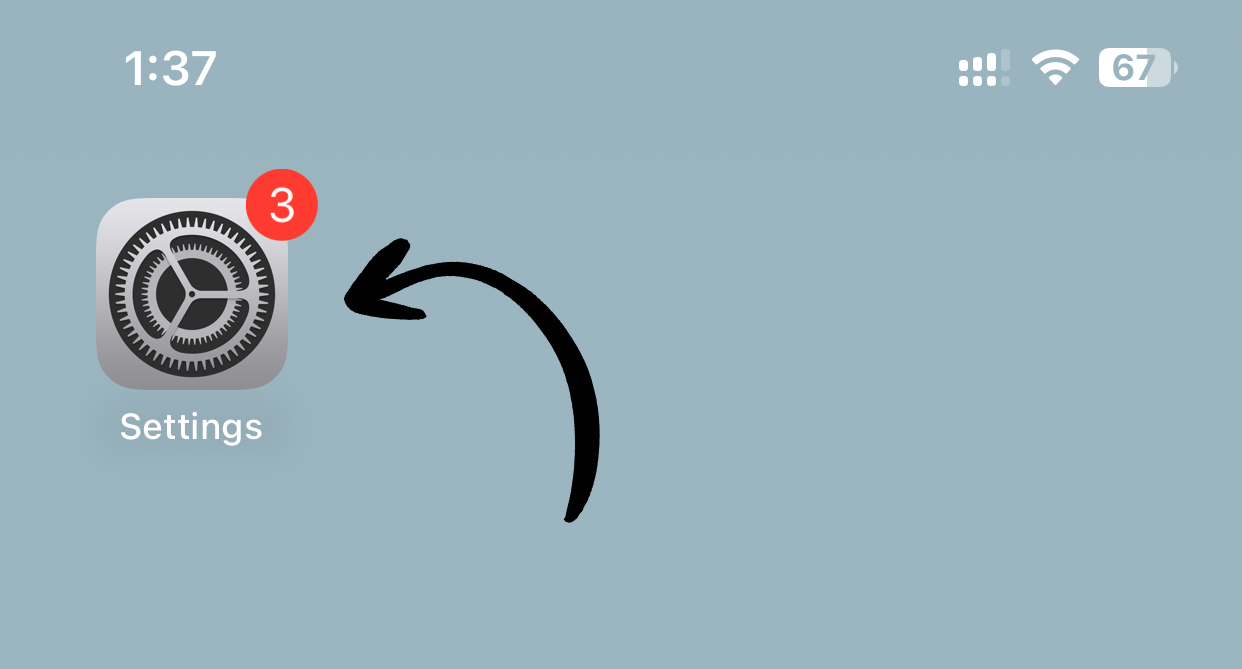
1. Open Settings
Tap Settings on your home screen.
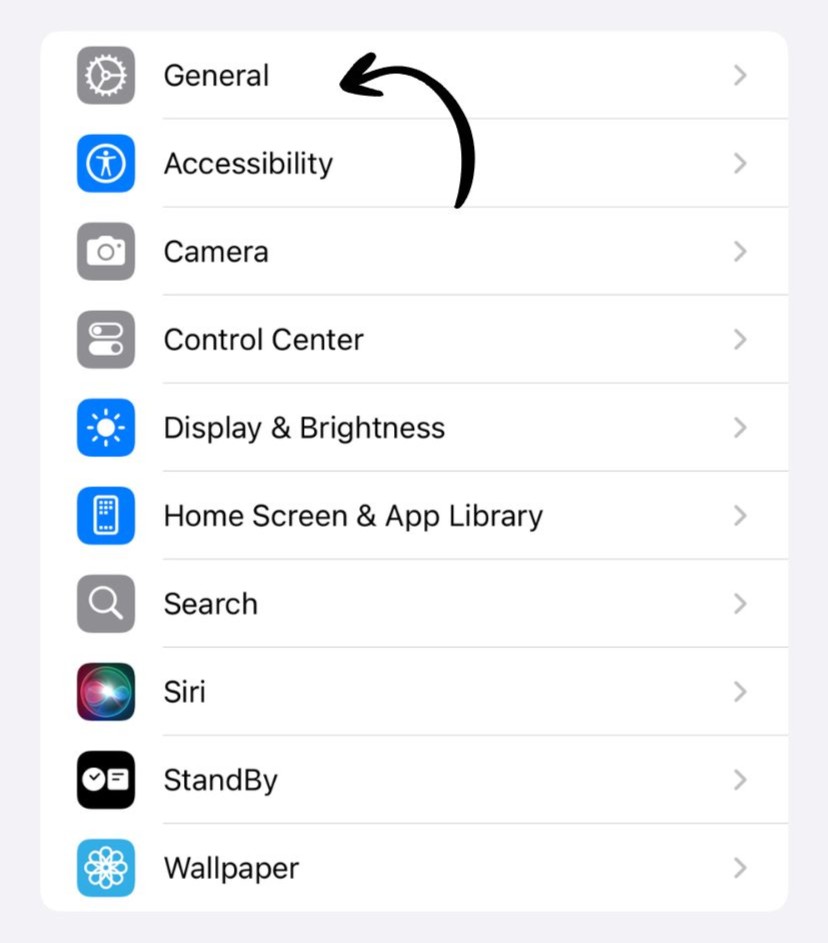
2. Go to General
Tap General.
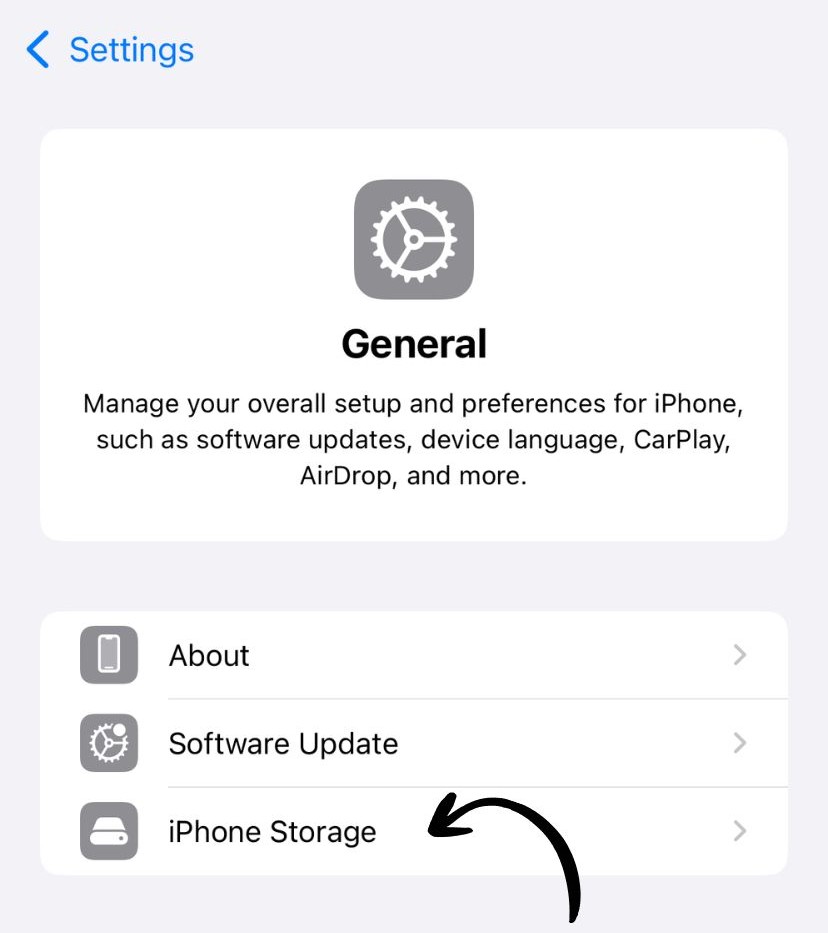
3. Tap iPhone Storage
Tap iPhone Storage (or iPad Storage on iPad).
Wait a moment for storage to calculate.
4. Review Recommendations
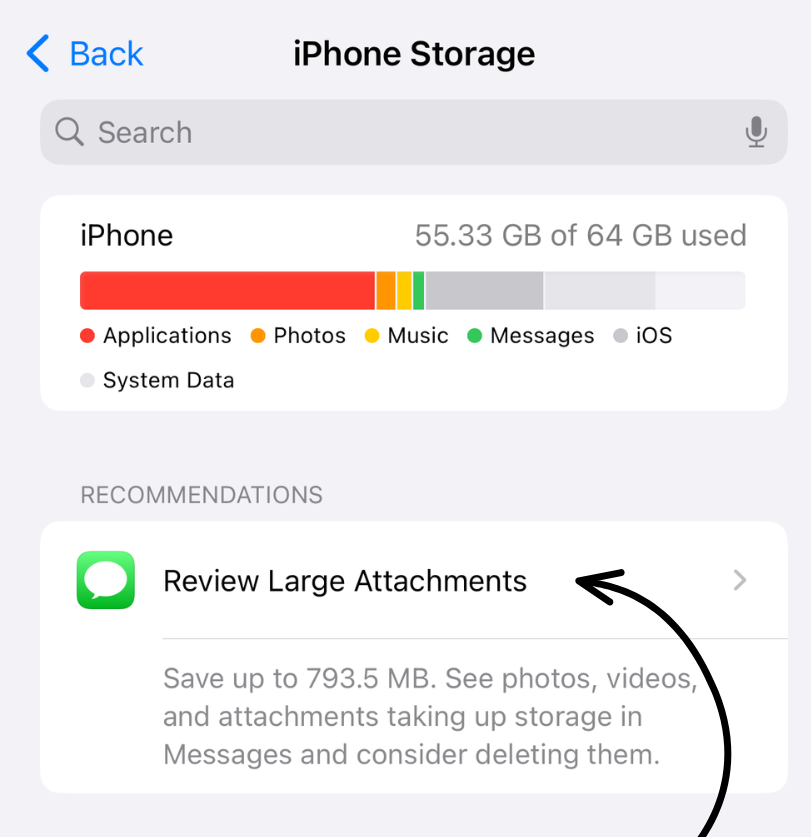
Scroll down to see recommendations. Look for:
- Review Large Attachments
- Review Downloaded Videos
5. Tap Review Large Attachments
Tap the recommendation to see all large files.
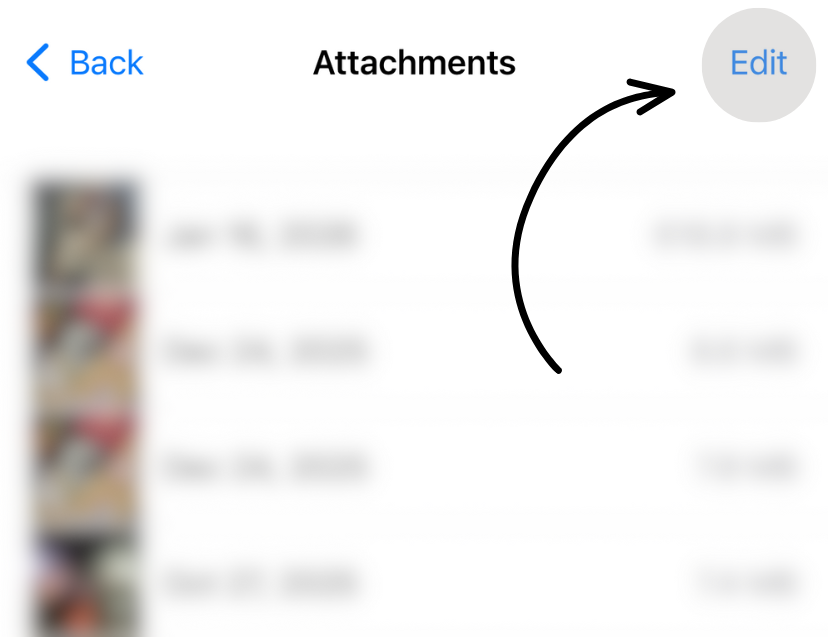
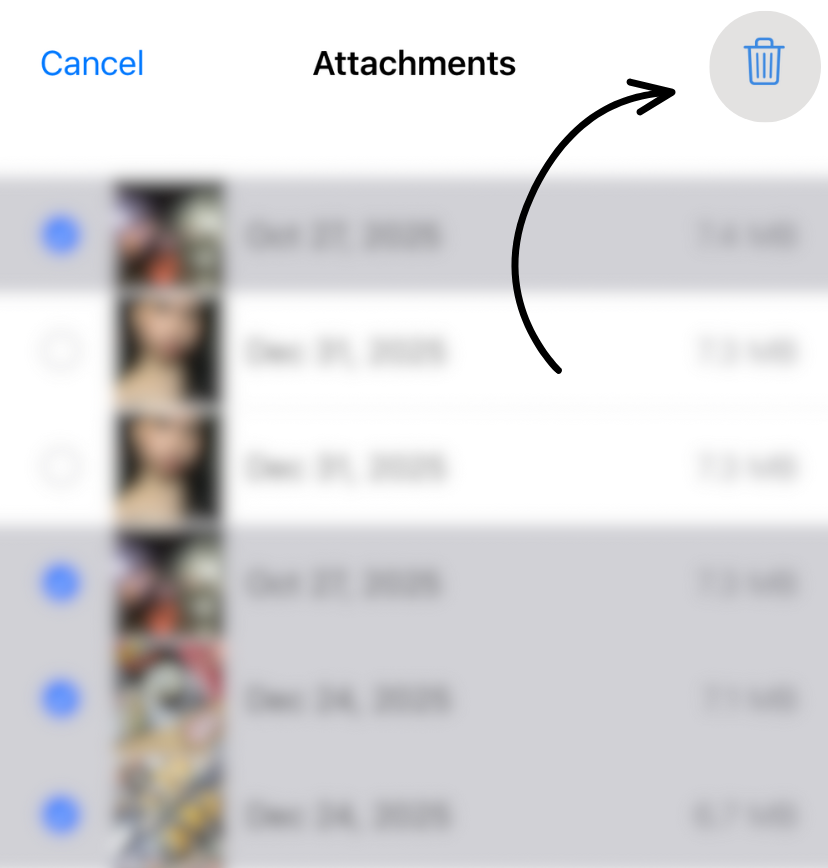
6. Delete Unwanted Files
You’ll see files sorted by size. For each one:
- Tap Edit in the top right
- Select files you want to delete
- Tap Delete
What You’ll Find
Large attachments include:
- Videos from Messages
- Photos sent via Messages or Mail
- Documents and PDFs
- Voice memos
- Downloaded email attachments
Files are sorted from largest to smallest, making it easy to quickly free up space.
How Much Space Will I Save?
Typical savings:
- Light messengers: 2-5GB
- Regular users: 5-10GB
- Heavy users: 10-15GB+
The biggest savings come from:
- Videos (50MB - 500MB each)
- High-resolution photos (5-15MB each)
- PDF documents (1-50MB each)
Safety Notes
⚠️ Deleted files are gone permanently from Messages/Mail (they’re not saved elsewhere unless you backed them up).
💡 Tip: Before deleting:
- Save important photos to your Photos app
- Save important documents to Files app or iCloud Drive
- Keep videos you might want later
Alternative: Messages Settings
You can also auto-delete old messages:
Settings → Messages → Keep Messages → 30 Days or 1 Year
This automatically removes old conversations and their attachments.
Works on iPhone and iPad
This feature works on both iPhone and iPad running iOS 11 or later. The interface is identical on both devices.
Related Guides
Clean Up Duplicate Photos Automatically
After optimizing your settings, use Dedupify to find and remove duplicate photos.
Download Dedupify