
How to Reduce Display Brightness on iPhone & iPad
Lower brightness to save battery and reduce eye strain on your iPhone or iPad.
Or follow the steps below manually
Save up to 30% battery life by optimizing your display brightness settings.
Why This Matters
The display is the biggest battery drain on your device. Reducing brightness can:
- Extend battery life significantly
- Reduce eye strain in low light
- Make outdoor viewing better (with True Tone)
- Improve sleep quality (with Night Shift)
Battery savings: 20-30% with proper brightness management
Quick Brightness Adjustment
Control Center Method (Fastest)
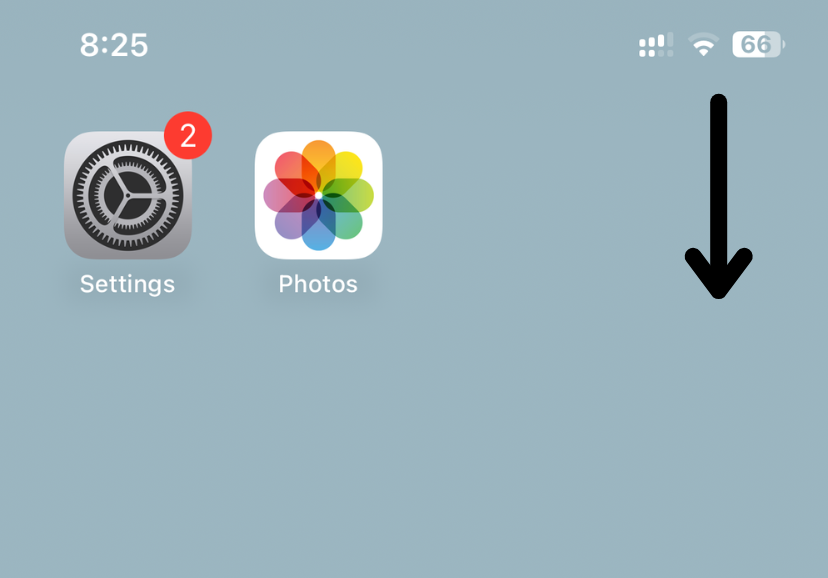
1. Open Control Center
- iPhone with Face ID: Swipe down from top-right corner
- iPhone with Home button: Swipe up from bottom
- iPad: Swipe down from top-right corner
2. Adjust Brightness Slider
Drag the brightness slider (sun icon) up or down.
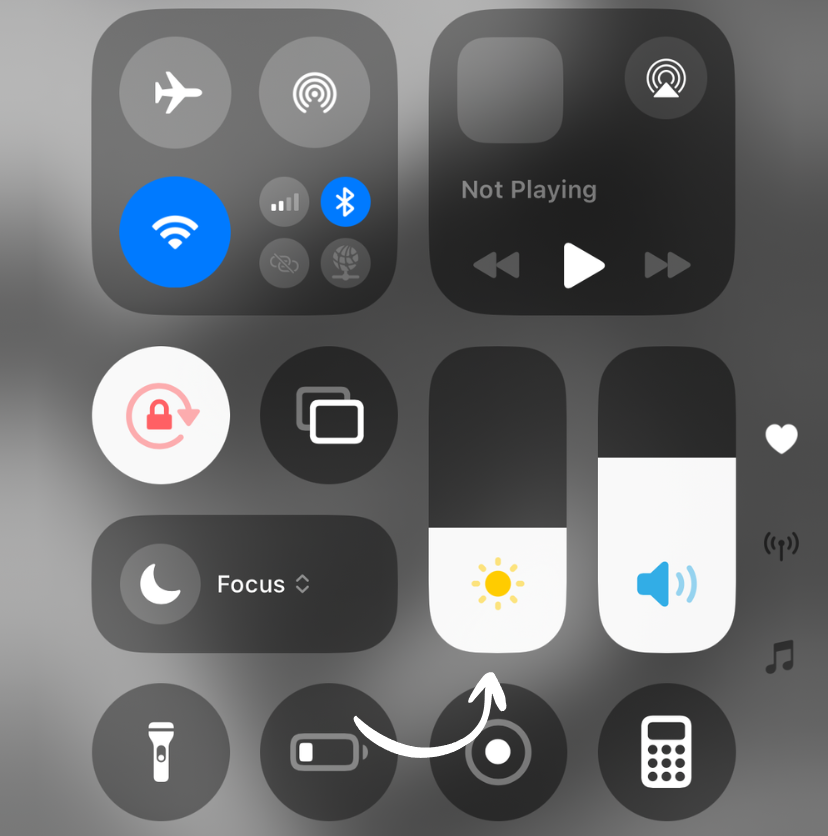
✅ Done! Brightness adjusted instantly.
Advanced Display Settings
Enable Auto-Brightness (Recommended)
Let your device automatically adjust brightness based on lighting conditions.
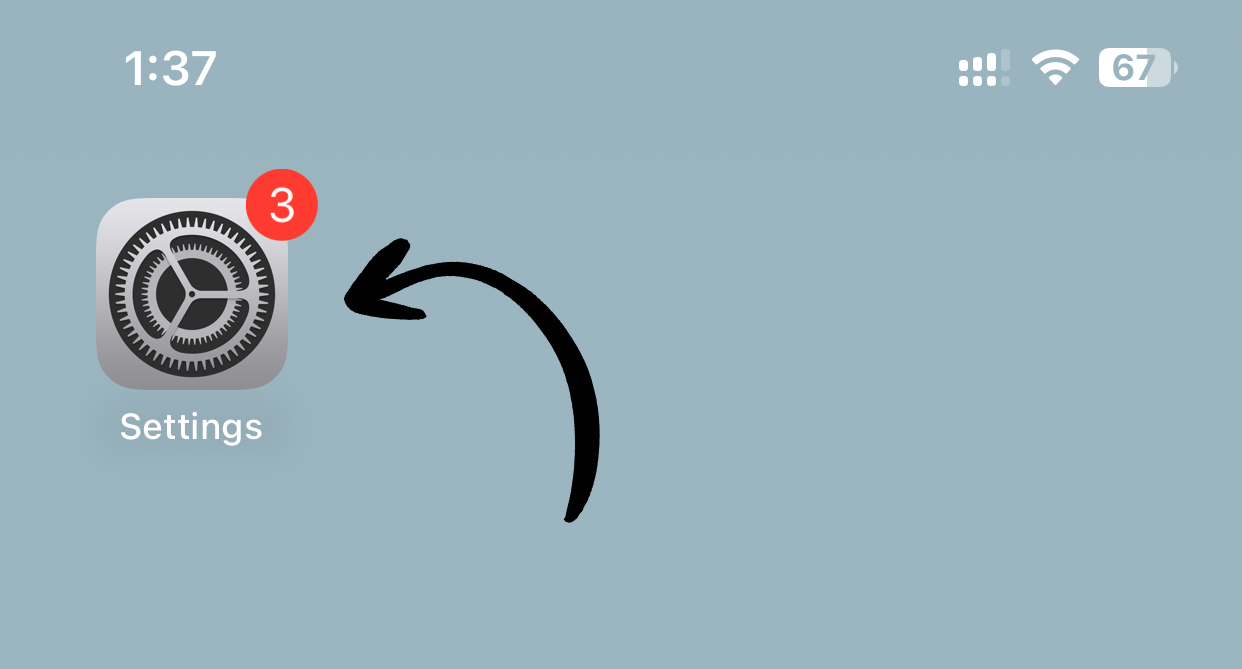
1. Open Settings
Tap Settings on your home screen.
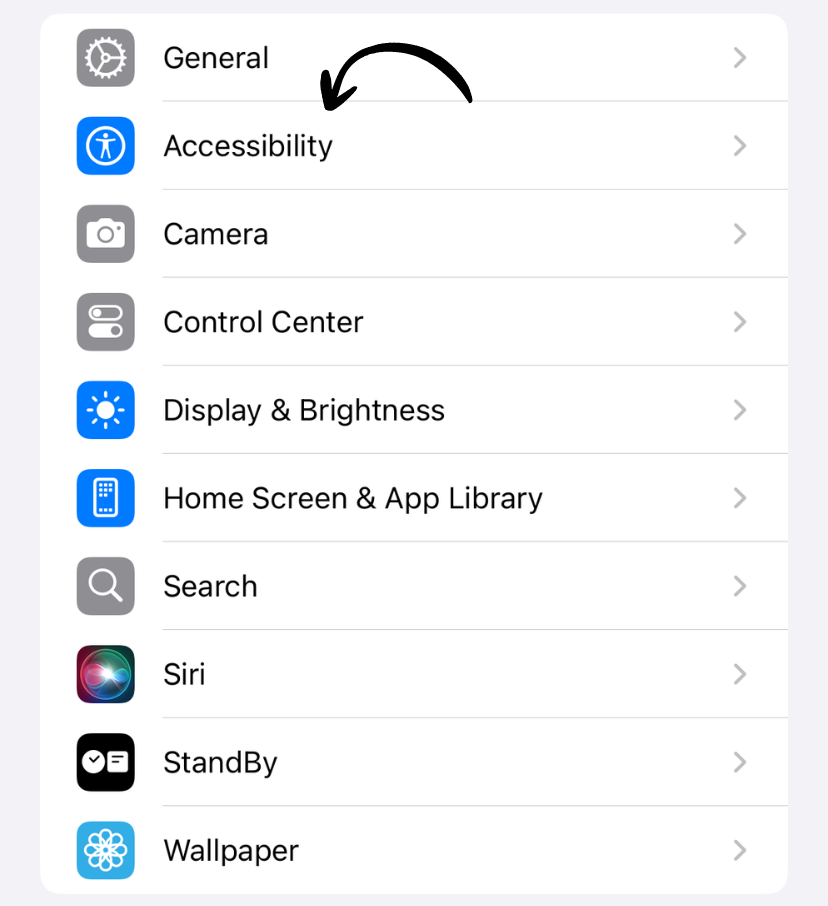
2. Go to Accessibility
Tap Accessibility.
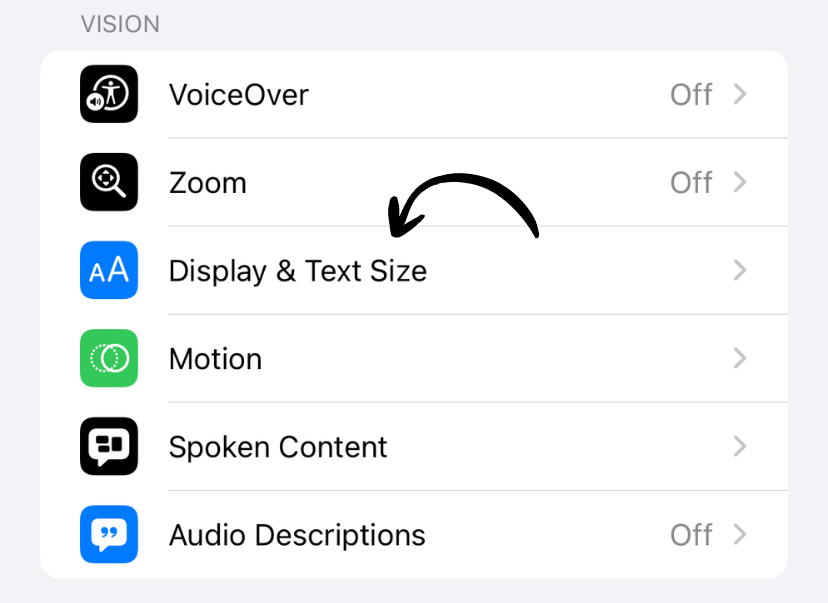
3. Tap Display & Text Size
Tap Display & Text Size.
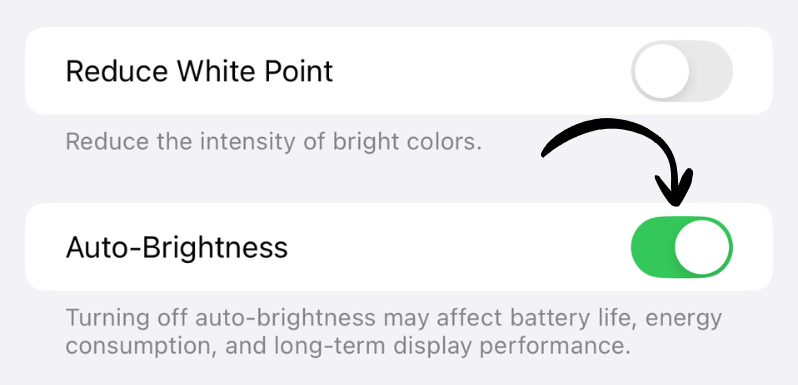
4. Enable Auto-Brightness
Scroll down and toggle on Auto-Brightness.
✅ Done! Your device will now adjust brightness automatically.
Enable True Tone
Adjusts colors based on ambient light for better viewing comfort.
1. Open Settings
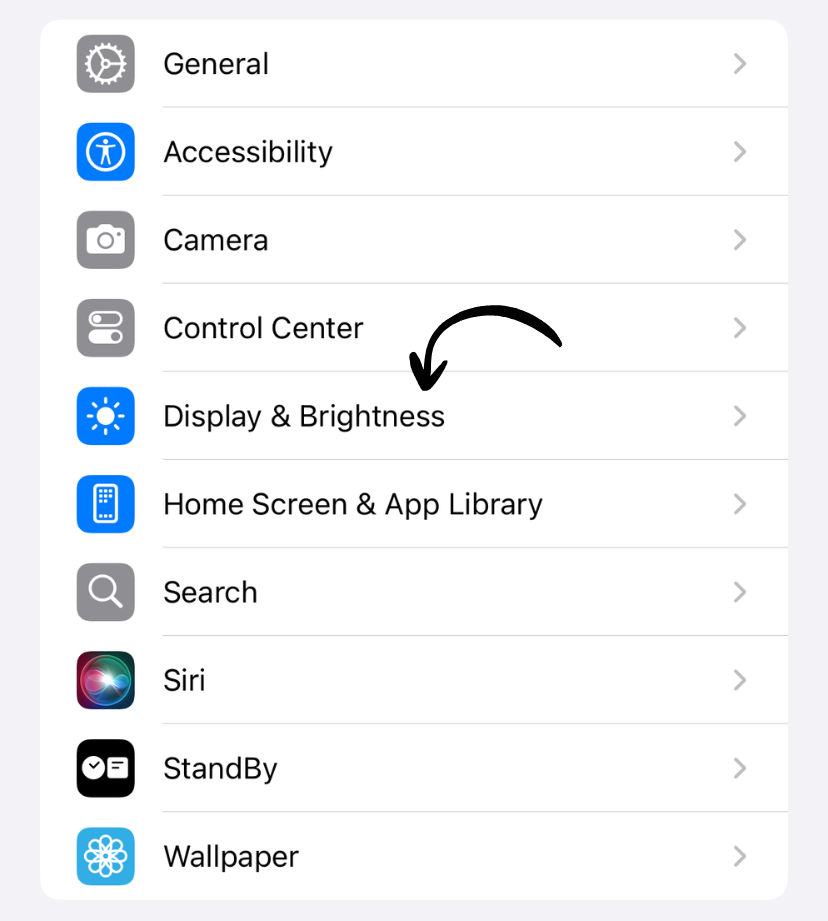
Tap Settings > Display & Brightness.
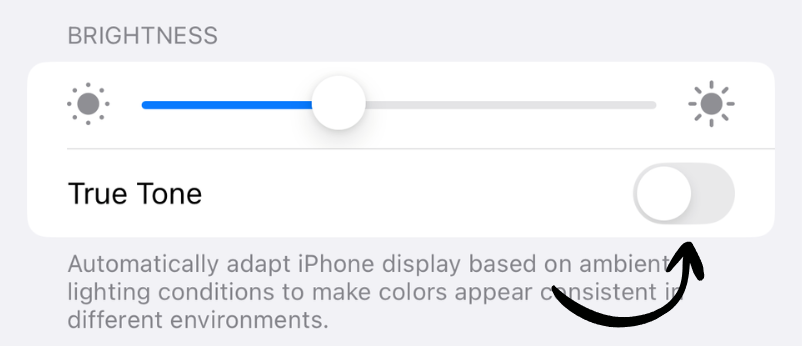
2. Enable True Tone
Toggle on True Tone.
Enable Night Shift
Reduces blue light at night for better sleep.
1. Open Settings
Tap Settings > Display & Brightness.
2. Tap Night Shift
Tap Night Shift.
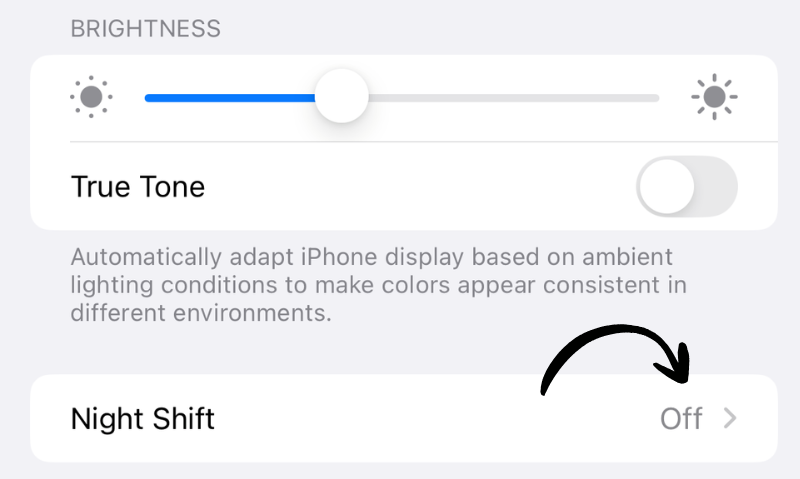
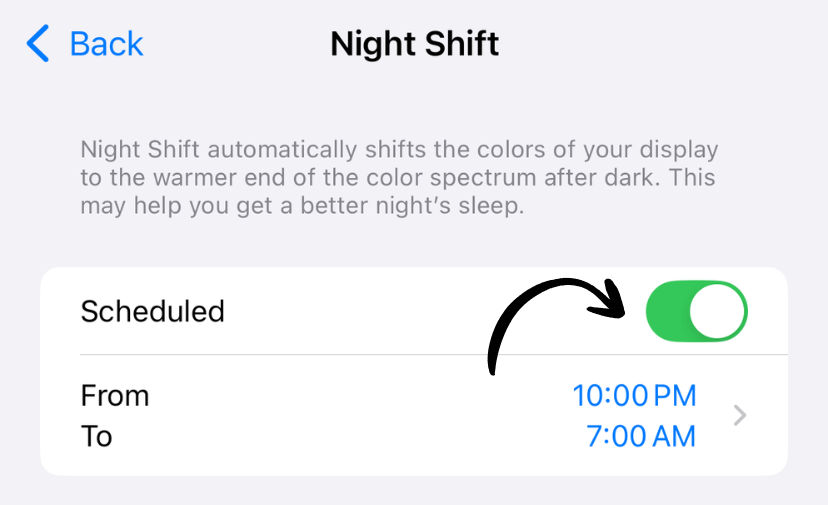
3. Schedule Night Shift
- Toggle on Scheduled
- Choose Sunset to Sunrise or Custom Schedule
Optimal Brightness Levels
Indoors:
- Recommended: 30-50% brightness
- Battery-saving: 20-30% brightness
Outdoors:
- Sunny day: 80-100% brightness
- Shade: 50-70% brightness
At night:
- Recommended: 10-30% brightness
- With Night Shift: Even lower
Battery Impact
Display brightness impact on battery:
- 100% brightness: Drains battery 30-40% faster
- 50% brightness: Balanced (recommended)
- 25% brightness: Saves 20-30% battery
Eye Comfort Tips
Reduce eye strain:
- Use Auto-Brightness
- Enable True Tone
- Enable Night Shift after sunset
- Avoid max brightness indoors
- Take breaks from screen time
Ideal settings:
- Auto-Brightness: On
- True Tone: On
- Night Shift: Scheduled
- Manual brightness: 30-50% indoors
Dark Mode for Additional Savings
On devices with OLED displays (iPhone X and later):
1. Open Settings
Tap Settings > Display & Brightness.
2. Select Dark
Tap Dark under Appearance.
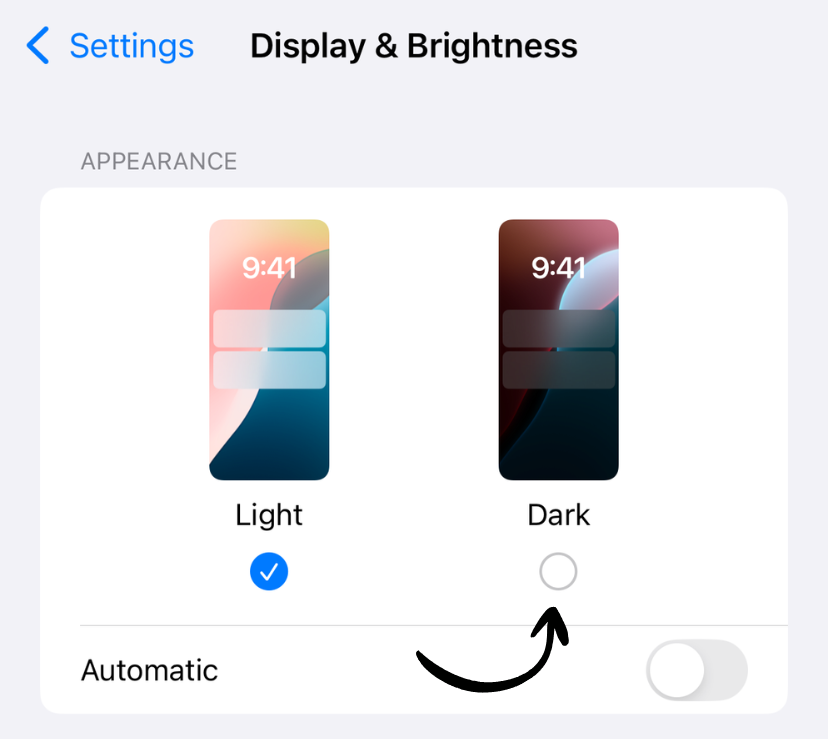
Additional battery savings: 10-15% on OLED displays
Works on iPhone and iPad
These display settings work on all iPhones and iPads running iOS 7 or later. True Tone requires compatible hardware (iPhone 8 and later, iPad Pro 2017 and later).
Related Guides
Clean Up Duplicate Photos Automatically
After optimizing your settings, use Dedupify to find and remove duplicate photos.
Download Dedupify