
How to Offload Unused Apps on iPhone & iPad
Remove apps you don't use while keeping their data. Easily reinstall later without losing settings or documents.
Or follow the steps below manually
Save 5-20GB of storage by offloading apps you rarely use while keeping all your data safe.
Why This Matters
Apps can be surprisingly large:
- Games: 1-5GB each
- Social media apps: 500MB - 2GB
- Navigation apps: 500MB - 1GB
Offloading vs Deleting:
- Offloading: Removes the app but keeps all data and settings
- Deleting: Removes everything (app + data)
When you reinstall an offloaded app, everything returns exactly as you left it.
Automatic Offloading (Recommended)
Let iOS automatically offload apps you don’t use:
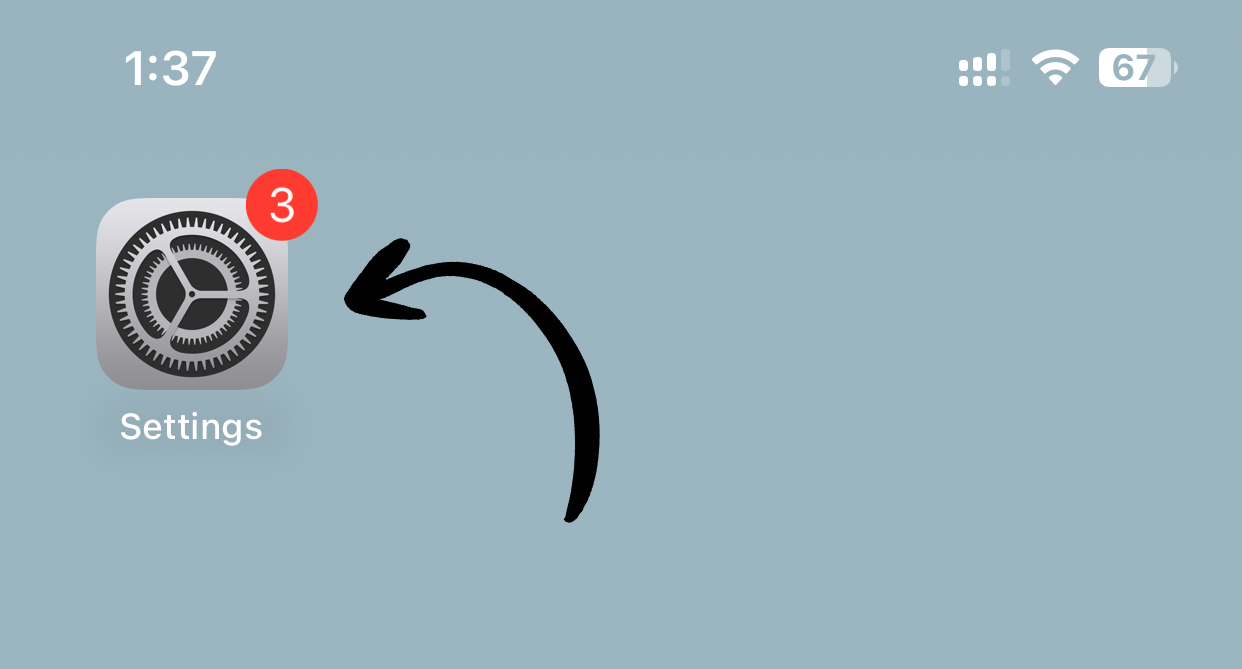
1. Open Settings
Tap Settings on your home screen.
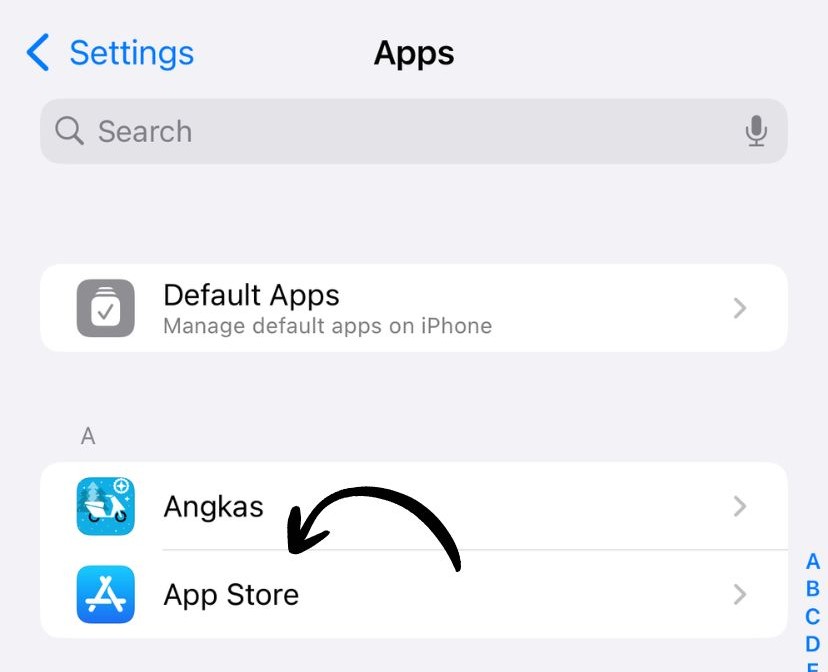
2. Go to App Store
Scroll down and tap App Store.
3. Enable Offload Unused Apps
Toggle on Offload Unused Apps.
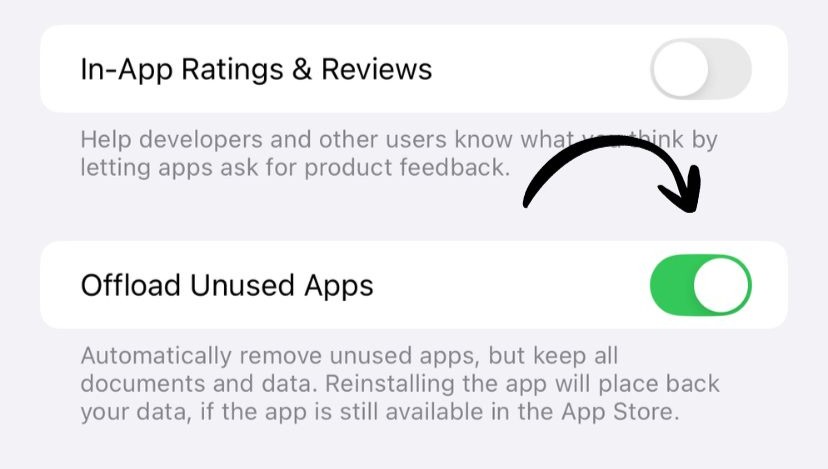
✅ Done! iOS will automatically offload apps when storage is low.
Manual Offloading
Offload specific apps manually:
1. Open Settings
Tap Settings on your home screen.
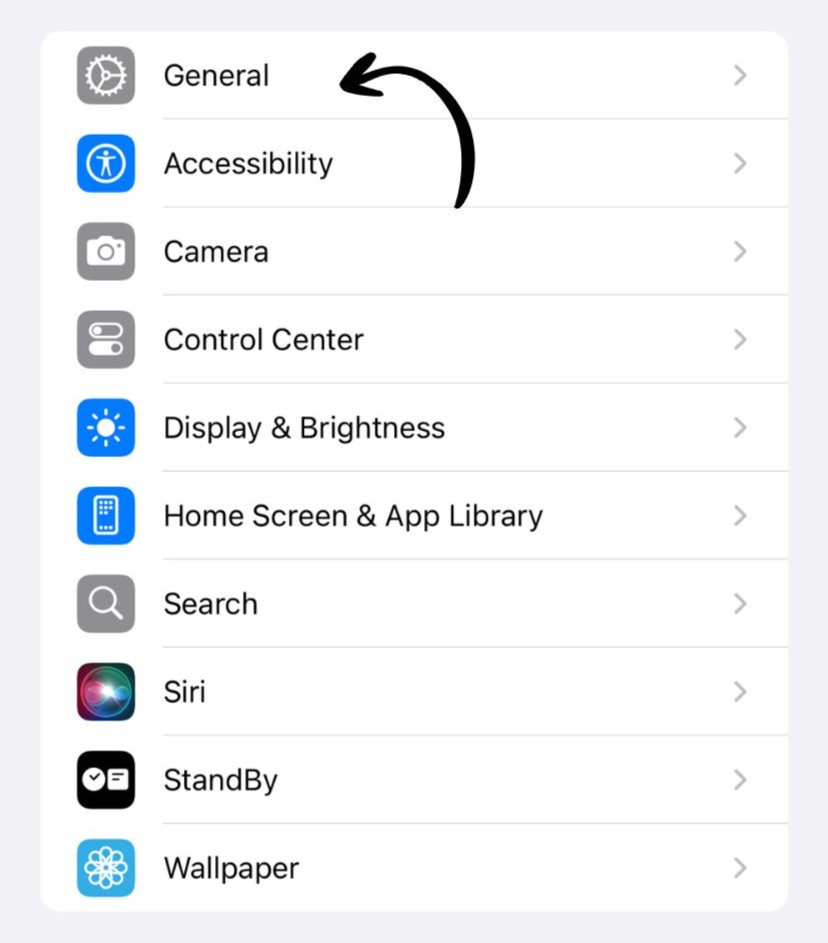
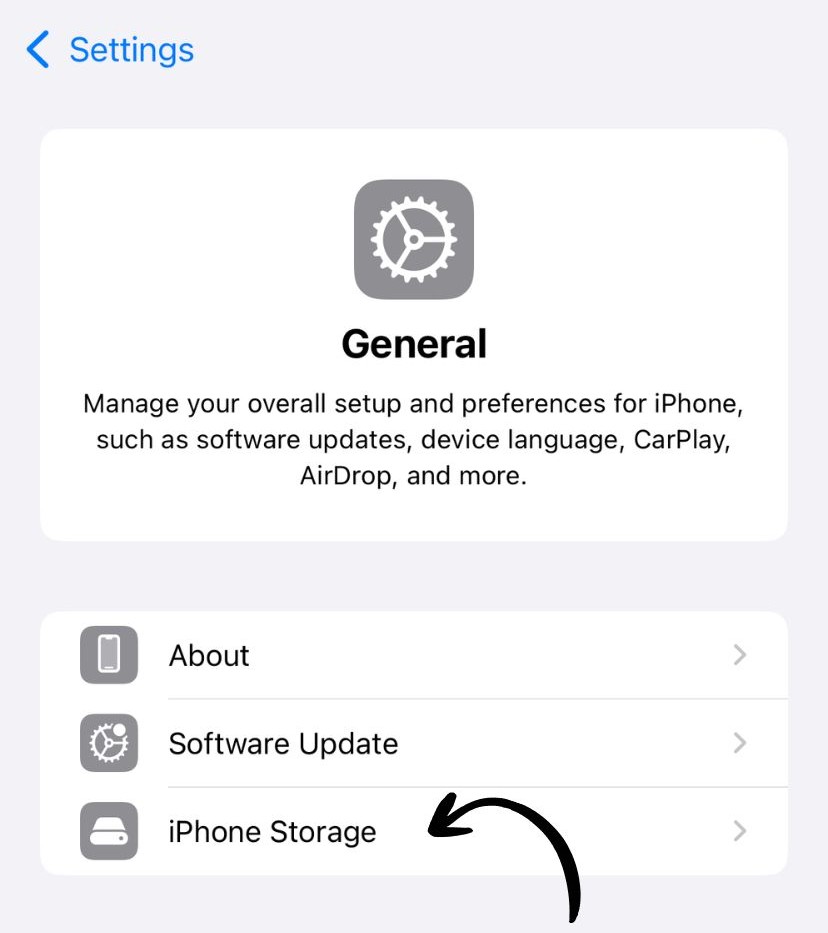
2. Go to General
Tap General.
3. Tap iPhone Storage
Tap iPhone Storage (or iPad Storage on iPad).
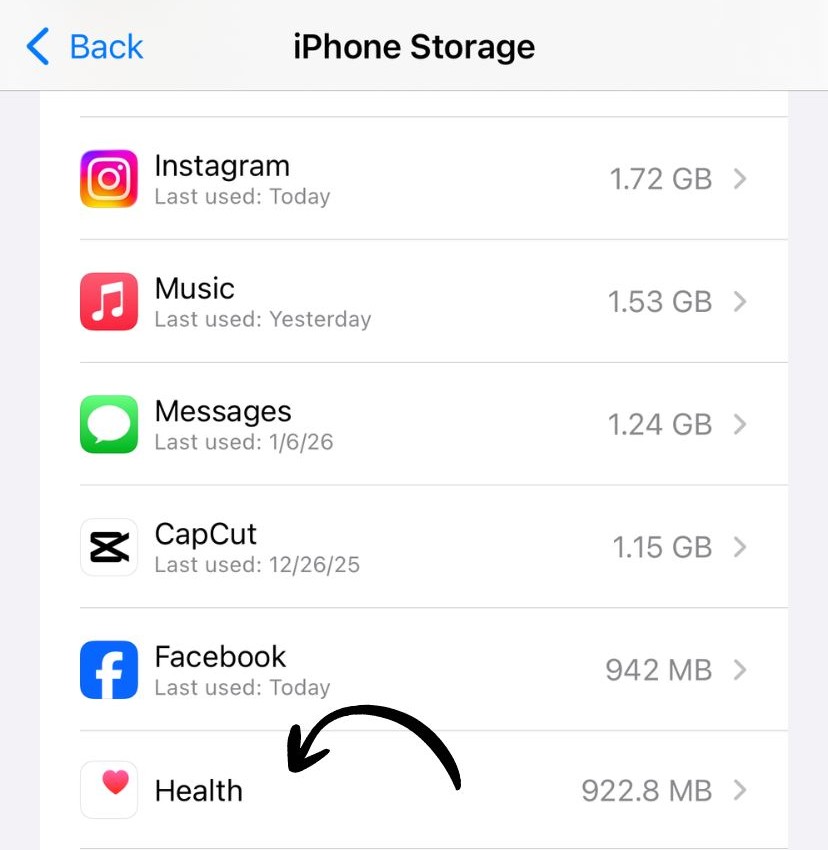
4. Select an App
Scroll through your apps and tap one to see details.
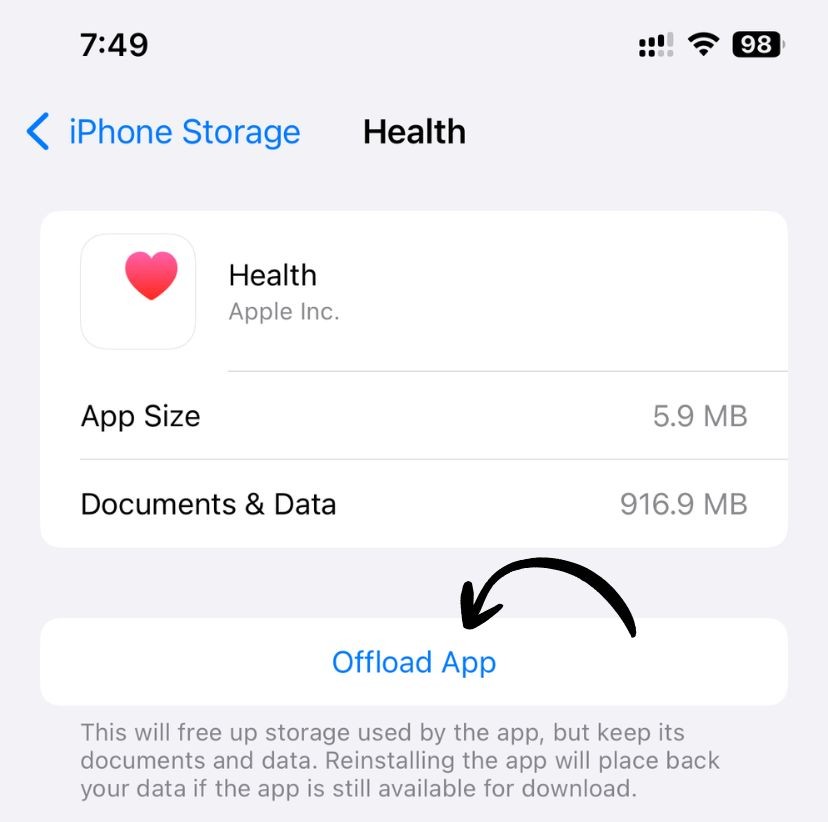
5. Offload the App
Tap Offload App and confirm.
Which Apps Should You Offload?
Good candidates for offloading:
- ✅ Games you finished but might replay
- ✅ Seasonal apps (tax software, holiday planners)
- ✅ Apps you use occasionally
- ✅ Large apps with cloud-synced data
Don’t offload:
- ❌ Apps you use daily
- ❌ Apps with local-only data you need
- ❌ System apps
How to Reinstall
When you tap an offloaded app’s icon, it automatically reinstalls from the App Store with all your data intact.
How Much Space Will I Save?
Check iPhone Storage (Settings → General → iPhone Storage) to see:
- How large each app is
- When you last used it
- Recommendations for apps to offload
Typical savings: 5-20GB depending on which apps you offload.
Works on iPhone and iPad
This feature works identically on both iPhone and iPad running iOS 11 or later.
Related Guides
Clean Up Duplicate Photos Automatically
After optimizing your settings, use Dedupify to find and remove duplicate photos.
Download Dedupify