
How to Manage Notifications on iPhone & iPad
Control app notification settings to reduce distractions and save battery life.
Or follow the steps below manually
Reduce distractions and save battery by optimizing which apps can send you notifications.
Why This Matters
Excessive notifications can:
- Interrupt focus and productivity
- Drain battery with screen wake-ups
- Cause unnecessary stress
- Waste time checking unimportant alerts
Benefits of optimization:
- Better focus and productivity
- Reduced anxiety and stress
- 5-10% battery savings
- More control over your device
Step-by-Step Guide
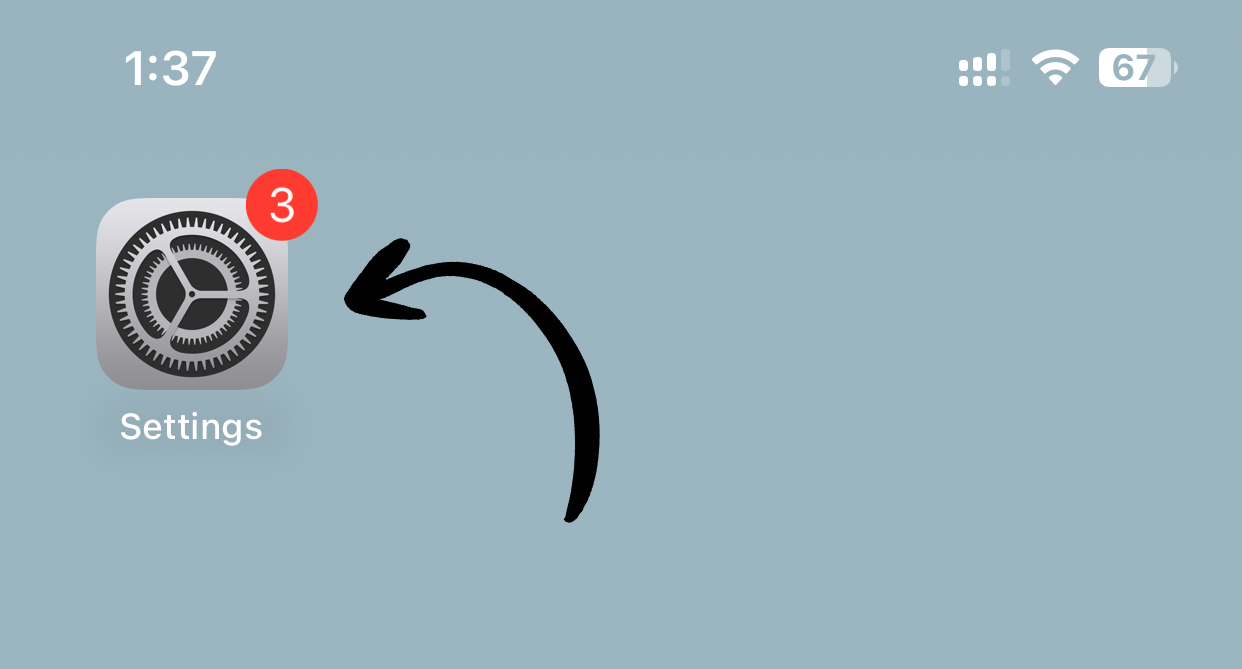
1. Open Settings
Tap Settings on your home screen.
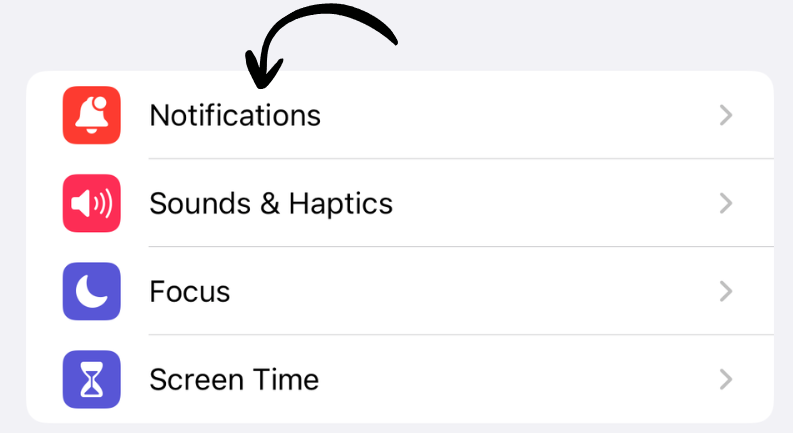
2. Go to Notifications
Tap Notifications.
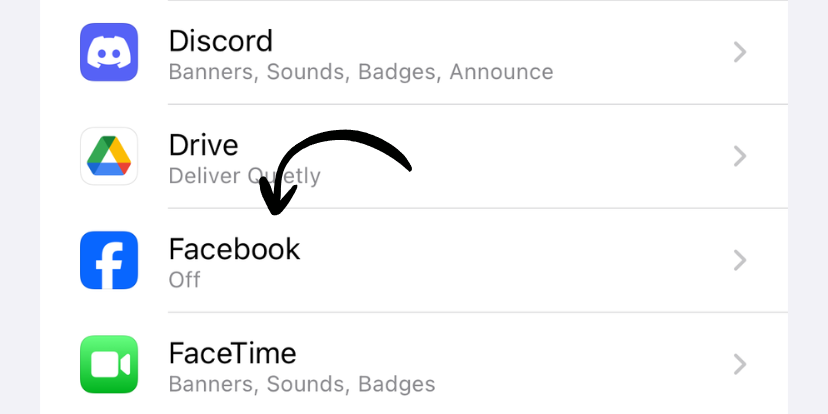
3. Review Each App
Scroll through the list and tap each app to configure its notification settings.
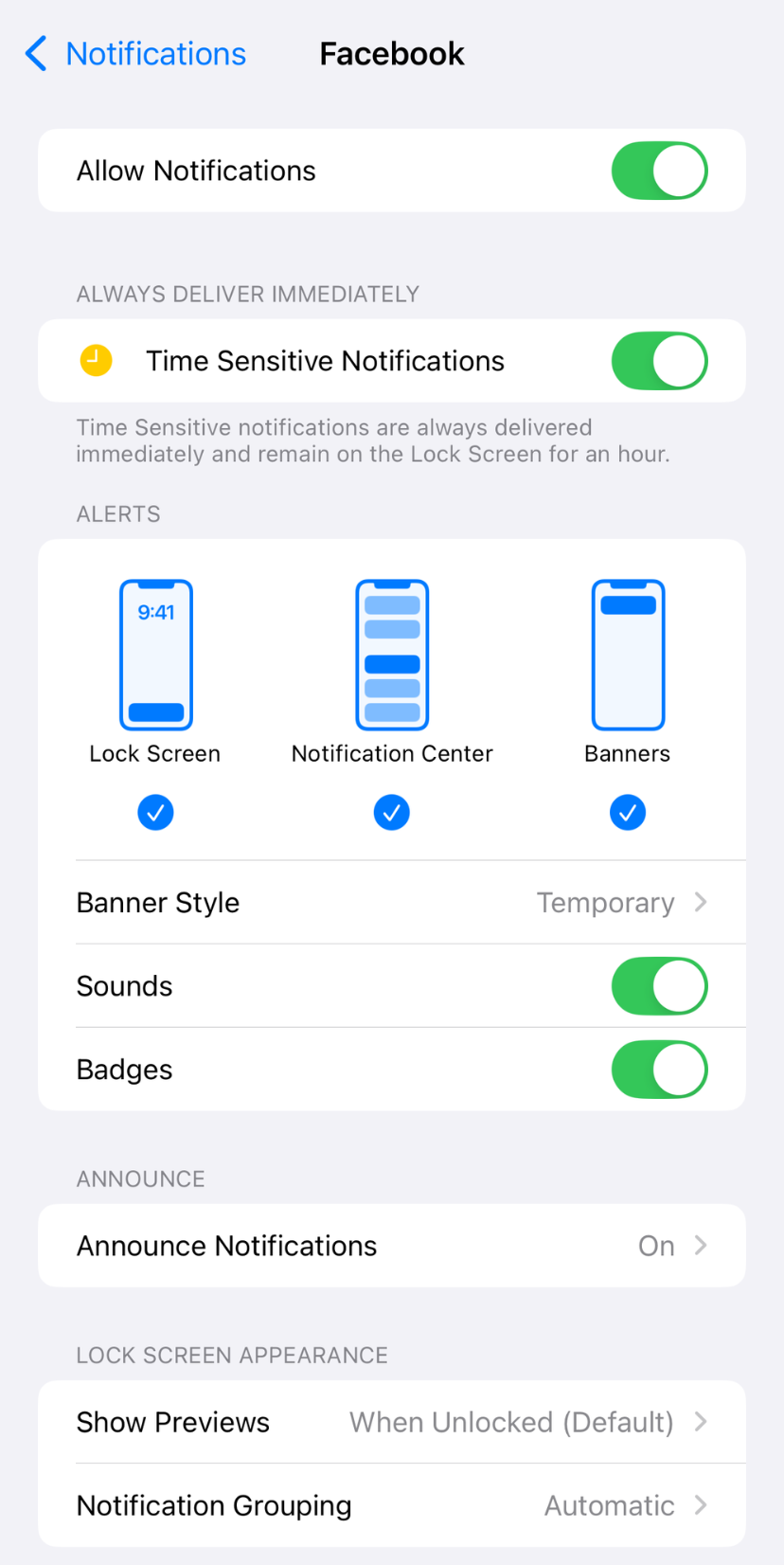
4. Adjust Notification Options
For each app, you can control:
- Allow Notifications (on/off)
- Lock Screen display
- Notification Center display
- Banners
- Badge App Icon
- Sounds
- Critical Alerts
Notification Delivery Options
Immediate Delivery
Notifications appear instantly.
Best for:
- Messages and calls
- Calendar events
- Important work apps
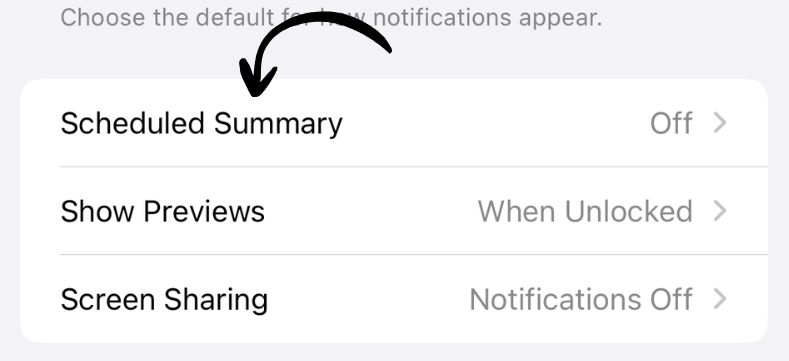
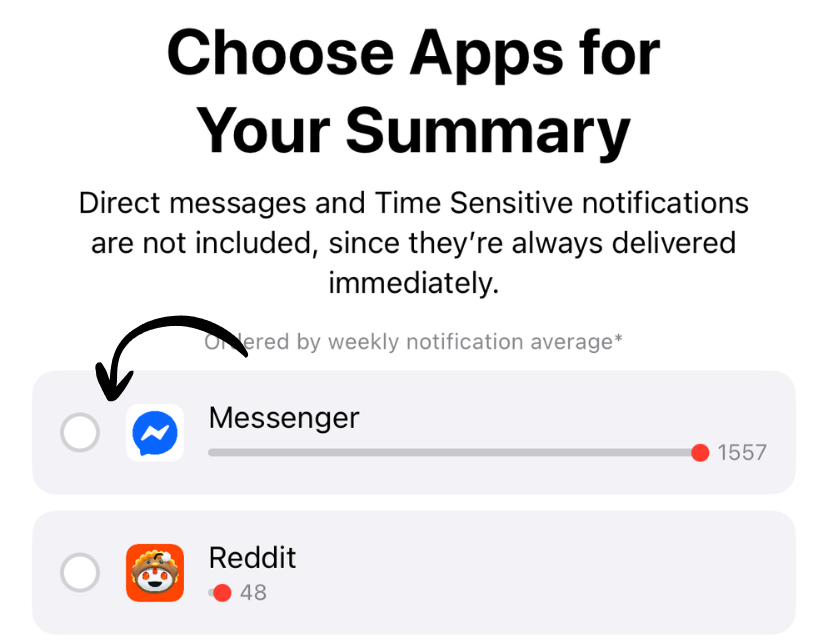
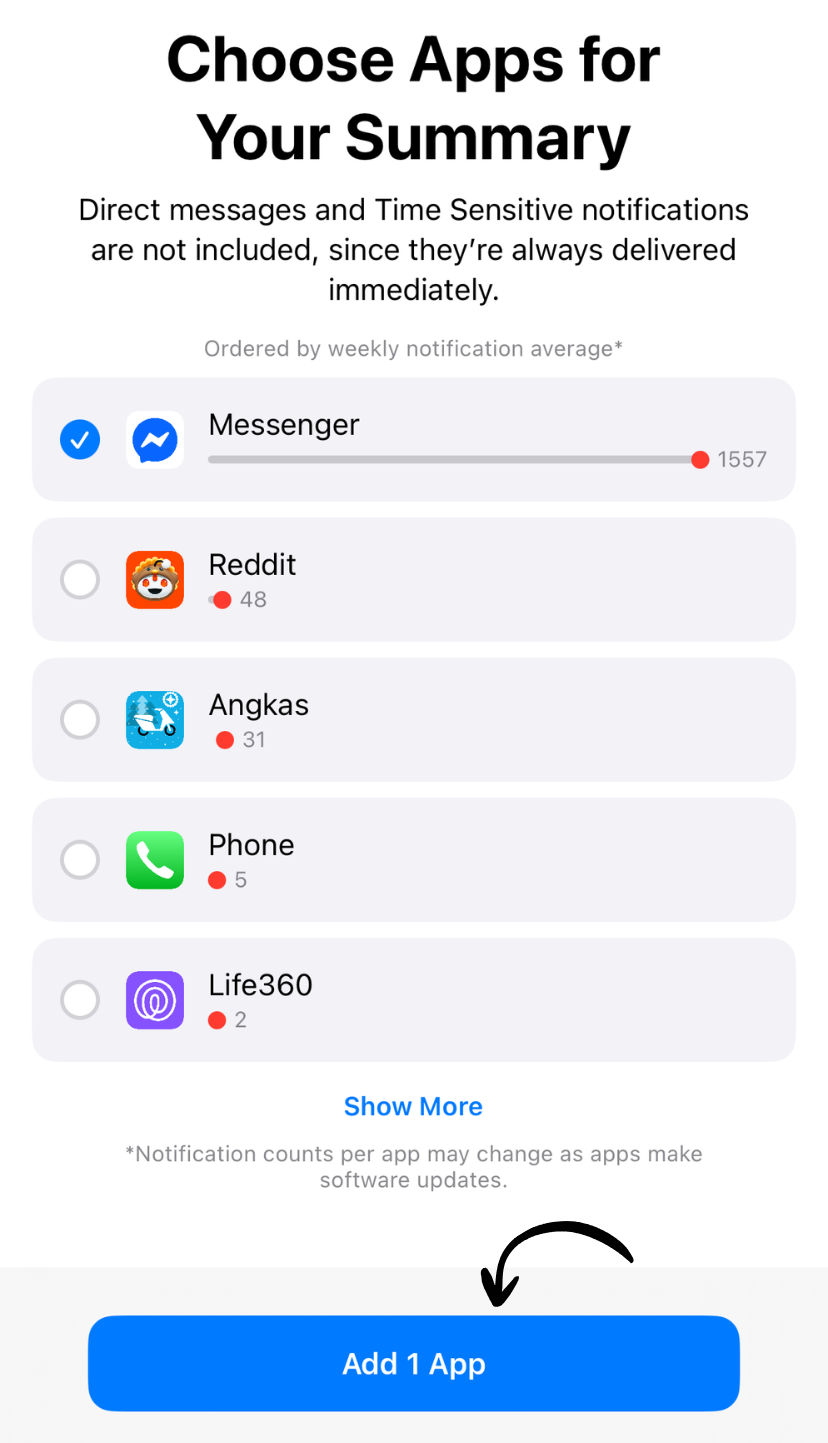
Scheduled Summary
Notifications arrive in a scheduled bundle.
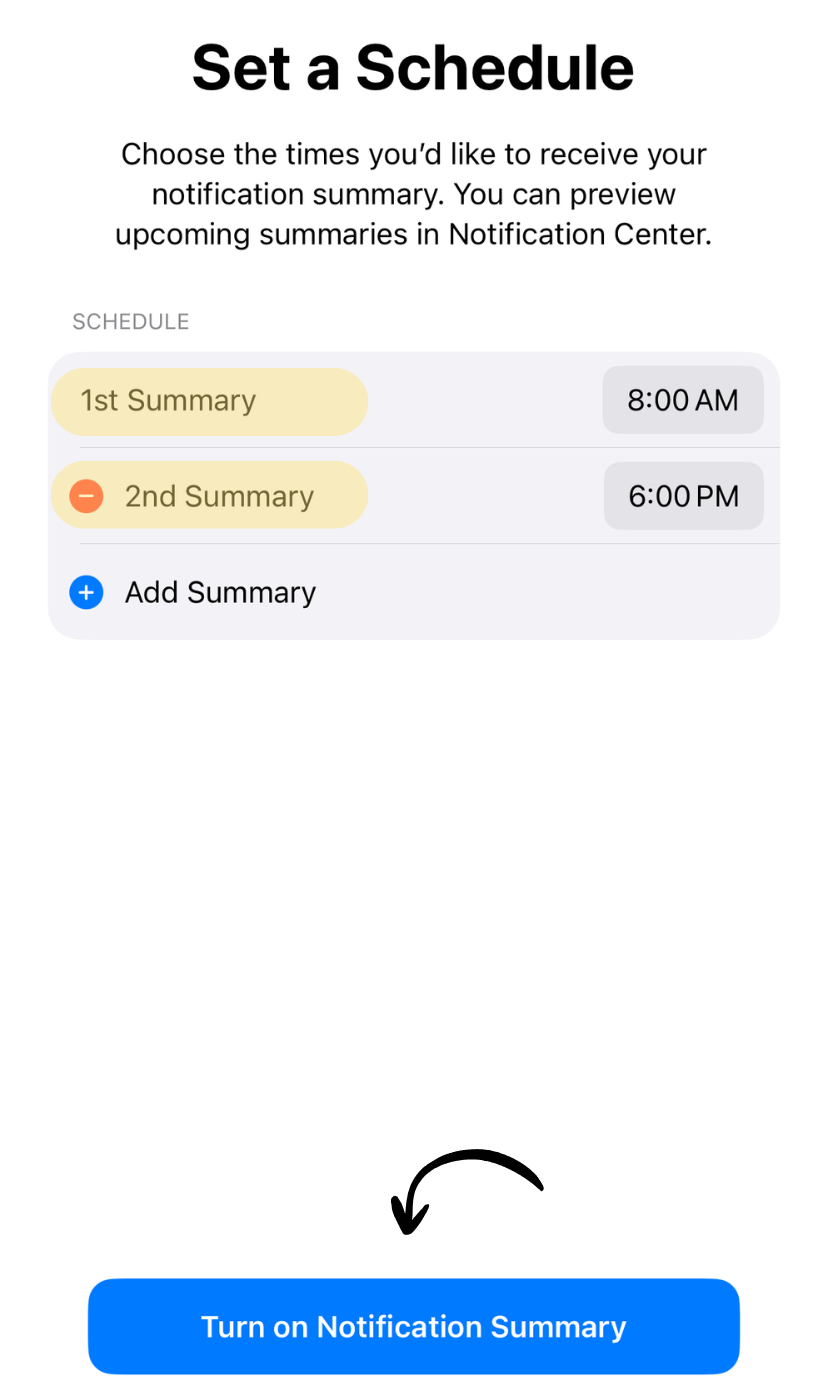
Configure summary times:
- Settings > Notifications > Scheduled Summary
- Set up the delivery times (e.g., 9 AM and 6 PM)
Best for:
- Social media
- News apps
- Shopping apps
- Non-urgent updates
Turn Off Completely
Best for:
- Apps you rarely use
- Games
- Promotional apps
Notification Styles
Banners
Temporary notification that appears at top of screen.
Options:
- Temporary: Disappears automatically
- Persistent: Stays until dismissed
Recommendation: Temporary for most apps, Persistent for important apps only.
Alerts
Requires action to dismiss.
Recommendation: Only for critical apps (Calendar, Reminders).
None
No banner or alert, only appears in Notification Center.
Recommendation: For apps you check manually (email, social media).
Recommended Settings by App Type
Messaging (Messages, WhatsApp, Slack)
- ✅ Allow Notifications
- ✅ Lock Screen
- ✅ Notification Center
- ✅ Banners (Temporary)
- ✅ Sounds
- ✅ Badge App Icon
Social Media (Facebook, Instagram, Twitter)
- ⚠️ Allow Notifications (or disable completely)
- ❌ Lock Screen
- ✅ Notification Center
- ❌ Banners
- ❌ Sounds
- ✅ Badge App Icon
- ⚠️ Use Scheduled Summary
- ✅ Allow Notifications
- ⚠️ Lock Screen (optional)
- ✅ Notification Center
- ❌ Banners (check manually)
- ❌ Sounds
- ✅ Badge App Icon
News Apps
- ⚠️ Allow Notifications
- ❌ Lock Screen
- ✅ Notification Center
- ❌ Banners
- ❌ Sounds
- ❌ Badge App Icon
- ✅ Use Scheduled Summary
Games
- ❌ Allow Notifications (disable completely)
Shopping/Delivery Apps
- ✅ Allow Notifications (for order updates)
- ✅ Lock Screen (for deliveries)
- ✅ Notification Center
- ✅ Banners (Temporary)
- ✅ Sounds
- ✅ Badge App Icon
Advanced Notification Features
Focus Modes
Create custom Focus modes to filter notifications:
- Settings > Focus
- Choose or create a Focus (Work, Personal, Sleep)
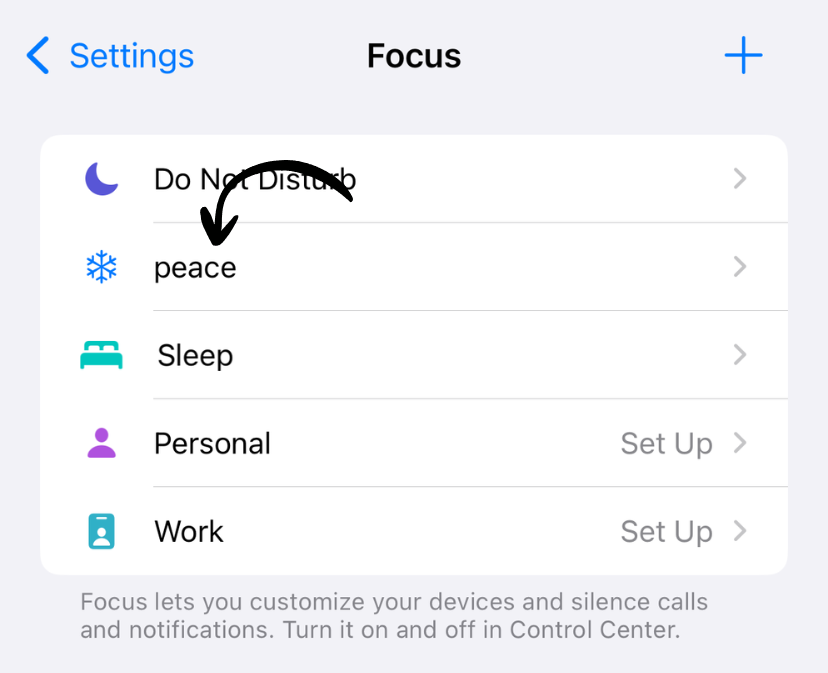
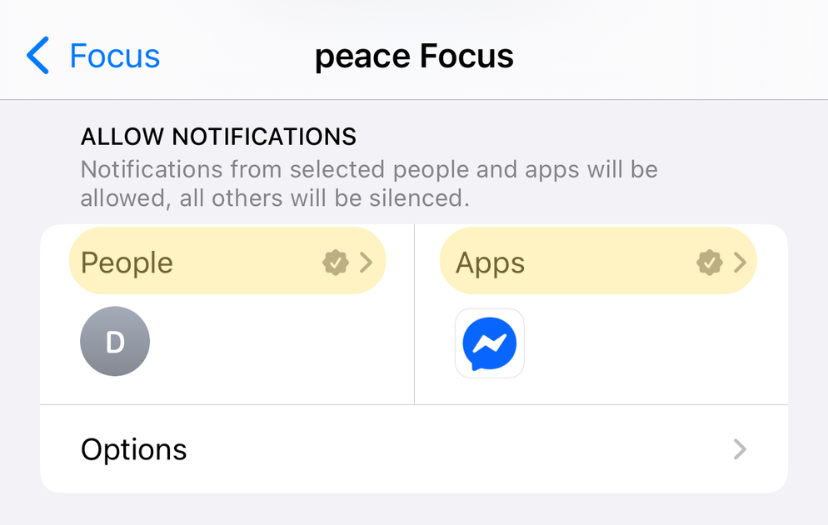
- Configure allowed apps and people
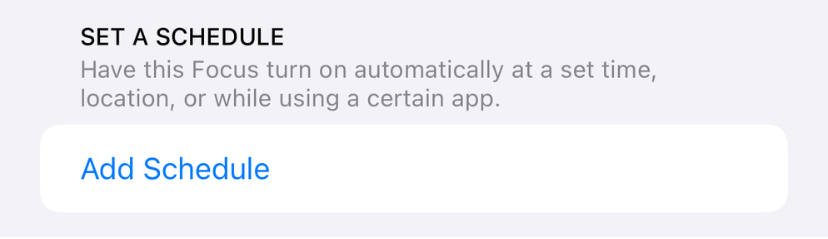
- Schedule or enable manually
Pre-configured modes:
- Do Not Disturb
- Sleep
- Work
- Personal
- Driving
Critical Alerts
Allow certain apps to bypass Do Not Disturb and Focus modes.
Use for:
- Emergency alerts
- Health apps
- Home security
- Critical work apps
Notification Previews
Control what shows in notifications:
- Settings > Notifications > Show Previews
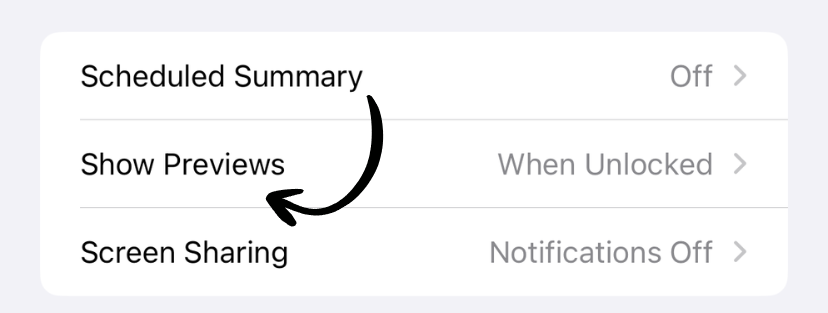
- Choose:
- Always: Show message content
- When Unlocked: Only when device unlocked
- Never: Never show content
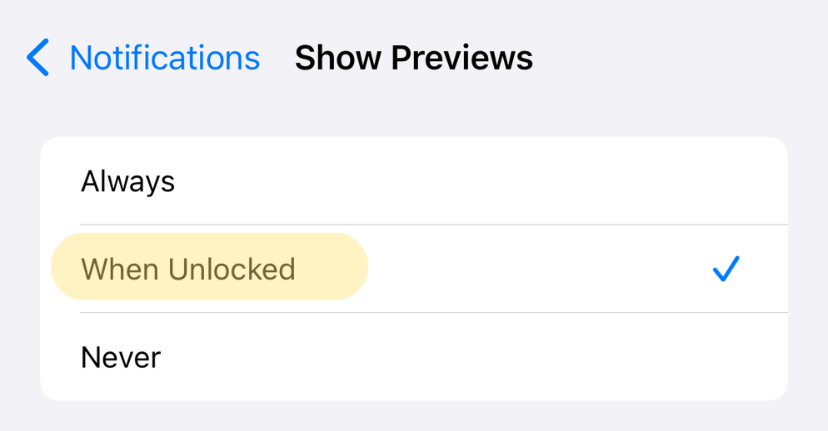
Recommendation: “When Unlocked” for best balance of privacy and convenience.
Battery Impact
Notification-related battery usage:
- Screen wake-ups: 5-10% battery per day
- Network fetching: 2-5% battery per day
- Sound/vibration: 1-2% battery per day
Optimization saves: 5-10% battery by reducing notifications.
Notification Grouping
Control how notifications from the same app are grouped:
Automatic
- iOS groups intelligently
- Recommended for most apps
By App
- All notifications in one stack
- Good for high-volume apps
Off
- Each notification separate
- Use for important, low-volume apps
Quick Notification Management
From Lock Screen or Notification Center:
- Swipe left on a notification
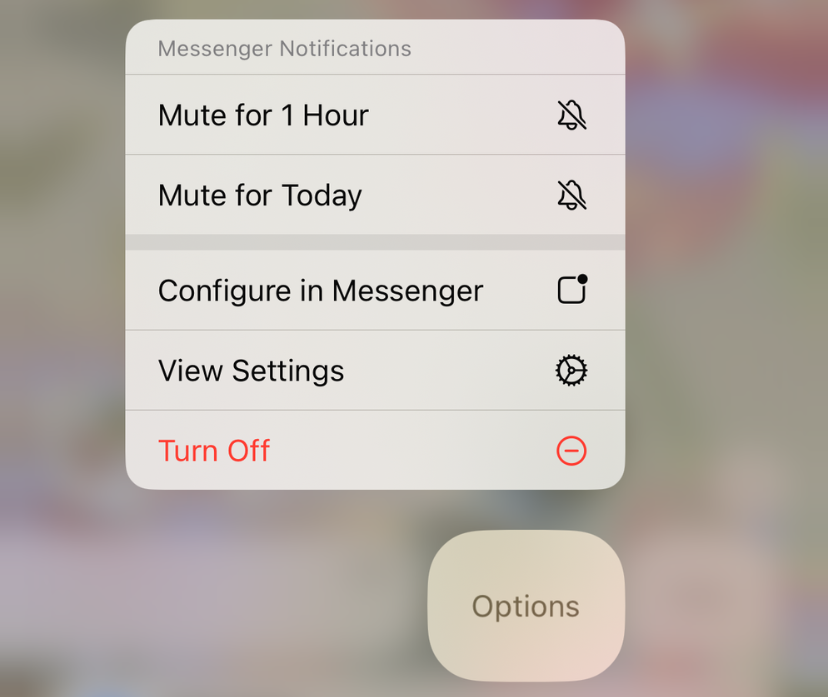
- Tap Options or …
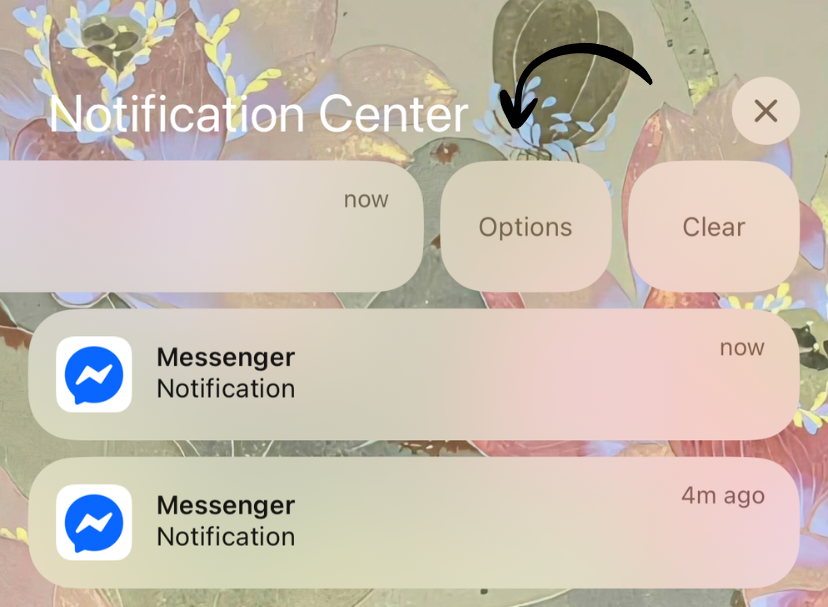
- Choose:
- Mute for 1 Hour
- Mute for Today
- Settings (go to app notification settings)
Our Recommendation
Minimize distractions:
- Only enable notifications for 5-10 essential apps
- Use Scheduled Summary for social media and news
- Disable Lock Screen notifications for non-urgent apps
- Turn off sounds for most apps
- Use Focus modes for work and sleep
- Check Screen Time weekly to audit notifications
Result: Better focus, less stress, longer battery life.
Works on iPhone and iPad
Notification settings work identically on iPhone and iPad running iOS 7 or later. Scheduled Summary and Focus modes require iOS 15 or later.
Related Guides
Clean Up Duplicate Photos Automatically
After optimizing your settings, use Dedupify to find and remove duplicate photos.
Download Dedupify