
How to Enable Low Power Mode on iPhone & iPad
Reduce power consumption when battery is low by enabling Low Power Mode to extend battery life.
Or follow the steps below manually
Extend your battery life by 20-30% when running low on power with Low Power Mode.
Why This Matters
Low Power Mode temporarily reduces power consumption by:
- Disabling automatic downloads and mail fetch
- Reducing visual effects and animations
- Limiting background app activity
- Reducing screen brightness
- Disabling 5G (except for video streaming)
When to use:
- Battery below 20%
- Away from charger for extended period
- Need device to last longer
Step-by-Step Guide
Method 1: Quick Access from Settings
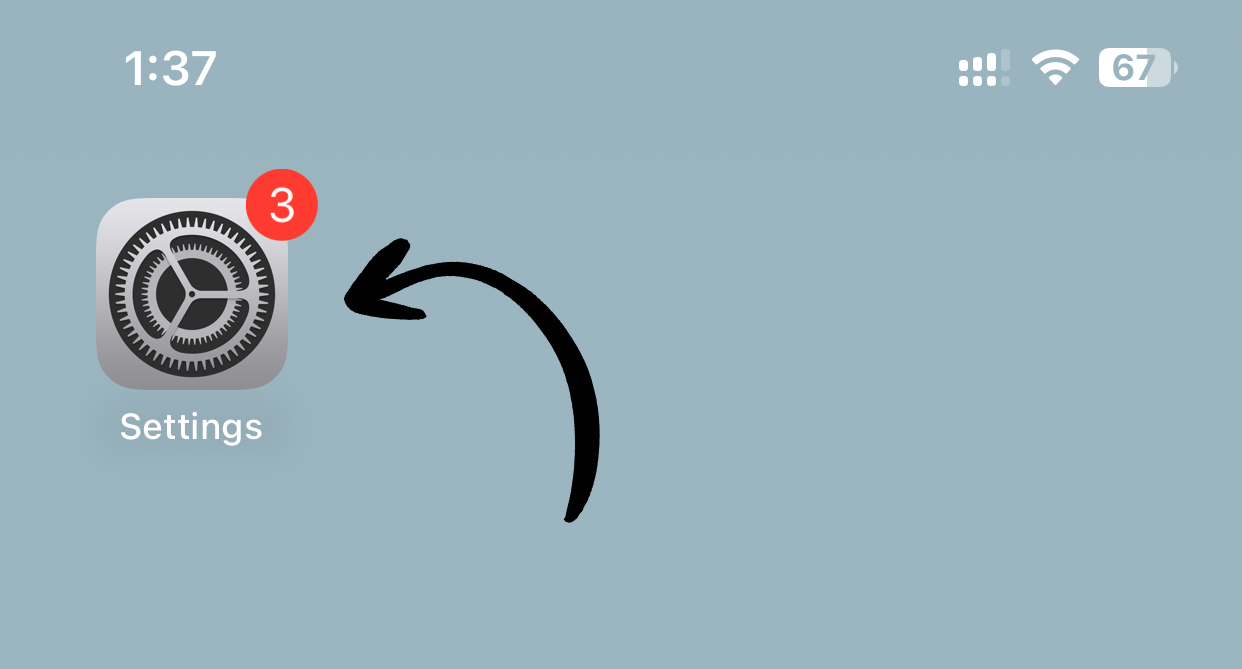
1. Open Settings
Tap Settings on your home screen.
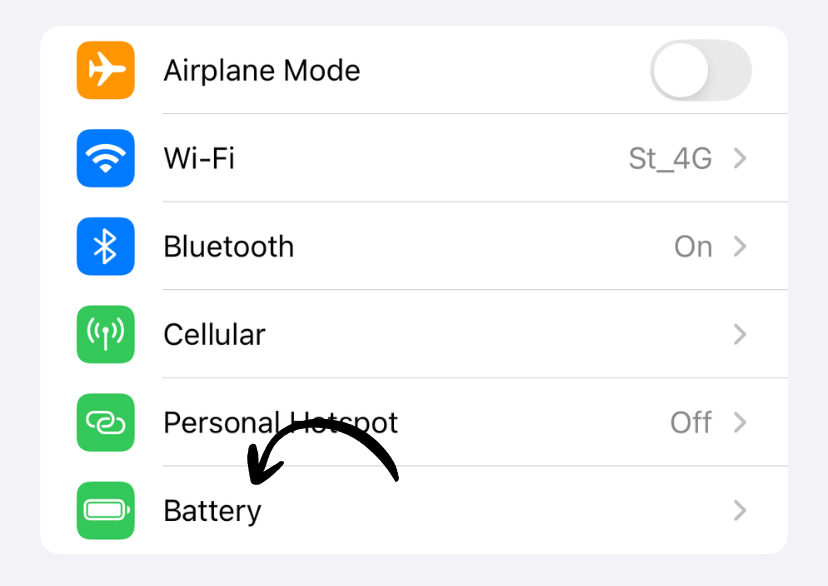
2. Go to Battery
Tap Battery.
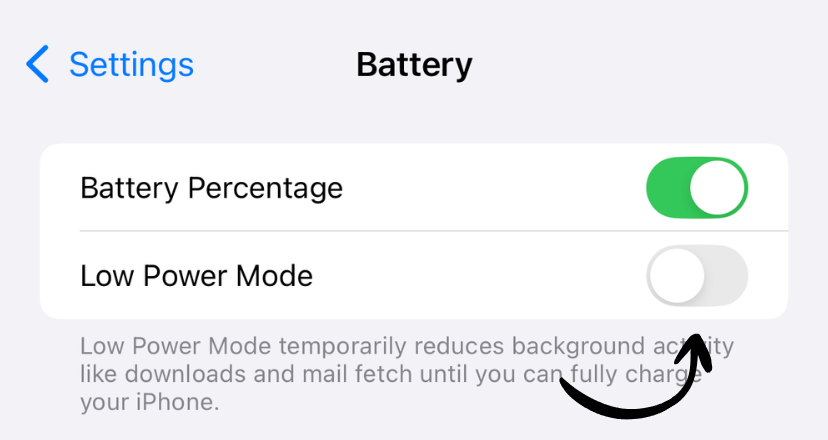
3. Enable Low Power Mode
Toggle on Low Power Mode.
✅ Done! Your device is now in Low Power Mode.
Method 2: Control Center
1. Open Control Center
- iPhone with Face ID: Swipe down from top-right corner
- iPhone with Home button: Swipe up from bottom
- iPad: Swipe down from top-right corner
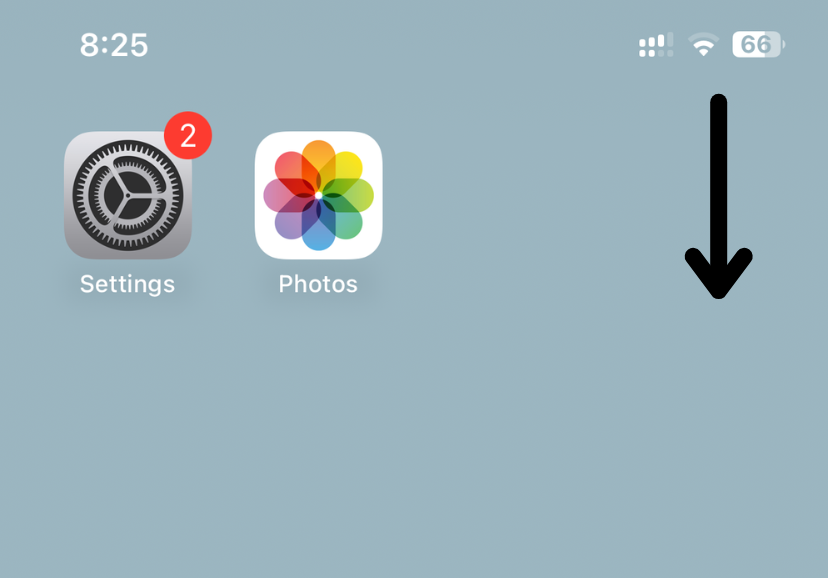
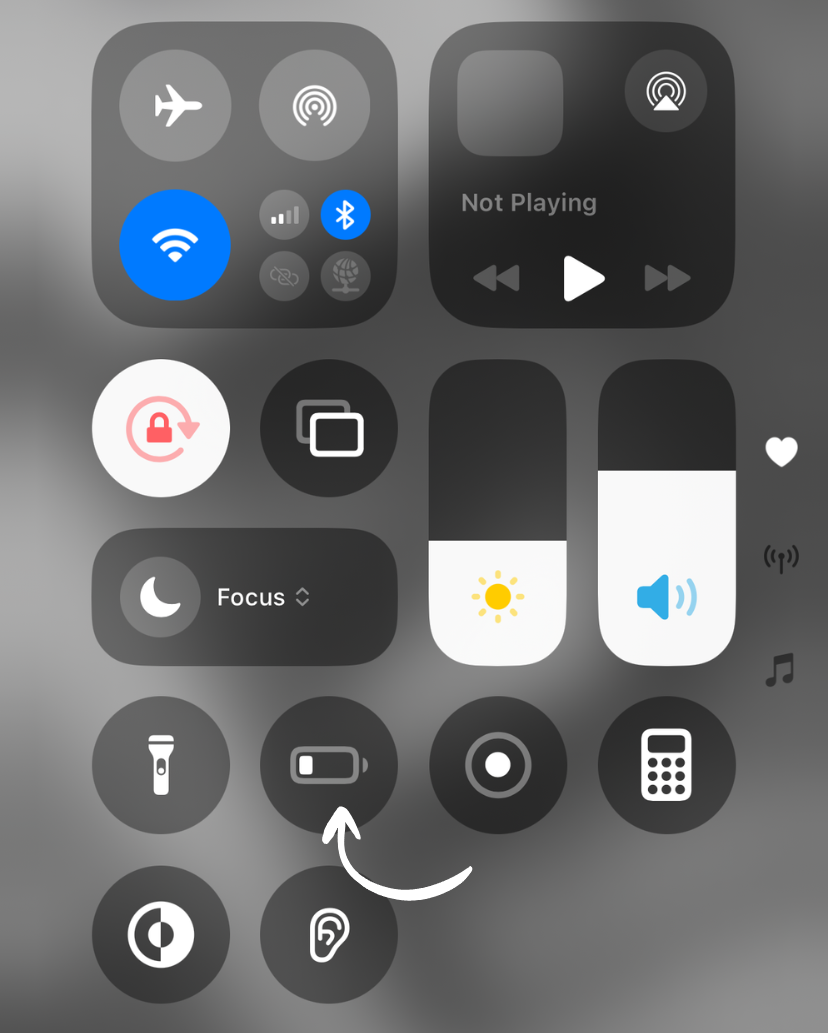
2. Tap Battery Icon
Tap the battery icon to toggle Low Power Mode on/off.
Method 3: Automatic Prompt
When your battery reaches 20% (and again at 10%), iOS will automatically prompt you to enable Low Power Mode.
What Changes in Low Power Mode?
Disabled features:
- Email fetch
- Background app refresh
- Automatic downloads
- Some visual effects
- Auto-Lock (reduced to 30 seconds)
Reduced performance:
- Slower processor speed
- Dimmer display
- Limited 5G
Still works normally:
- Phone calls and messages
- Internet browsing
- Apps (but may be slower)
- Photos and Camera
How Long Does It Last?
Low Power Mode automatically turns off when:
- You charge your device to 80% or more
- You manually disable it
Battery Savings
Typical battery life extension:
- Light use: +2-3 hours
- Moderate use: +1-2 hours
- Heavy use: +30-60 minutes
Tips for Maximum Battery Life
- Enable at 50% if you know you’ll need extra battery later
- Combine with airplane mode when you don’t need connectivity
- Lower brightness manually for even more savings
- Close unnecessary apps before enabling
Works on iPhone and iPad
This feature is available on both iPhone and iPad running iOS 9 or later. The settings are identical on both devices.
Related Guides
Clean Up Duplicate Photos Automatically
After optimizing your settings, use Dedupify to find and remove duplicate photos.
Download Dedupify