
How to Manage Location Services on iPhone & iPad
Manage which apps can access your location to save battery and protect privacy.
Or follow the steps below manually
Save 10-20% battery and protect your privacy by managing app location permissions.
Why This Matters
Location Services uses GPS, Bluetooth, Wi-Fi, and cellular to determine your location. This can:
- Drain battery significantly
- Allow apps to track your movements
- Use data in background
- Slow down device performance
Battery savings: 10-20% by optimizing location permissions
Step-by-Step Guide
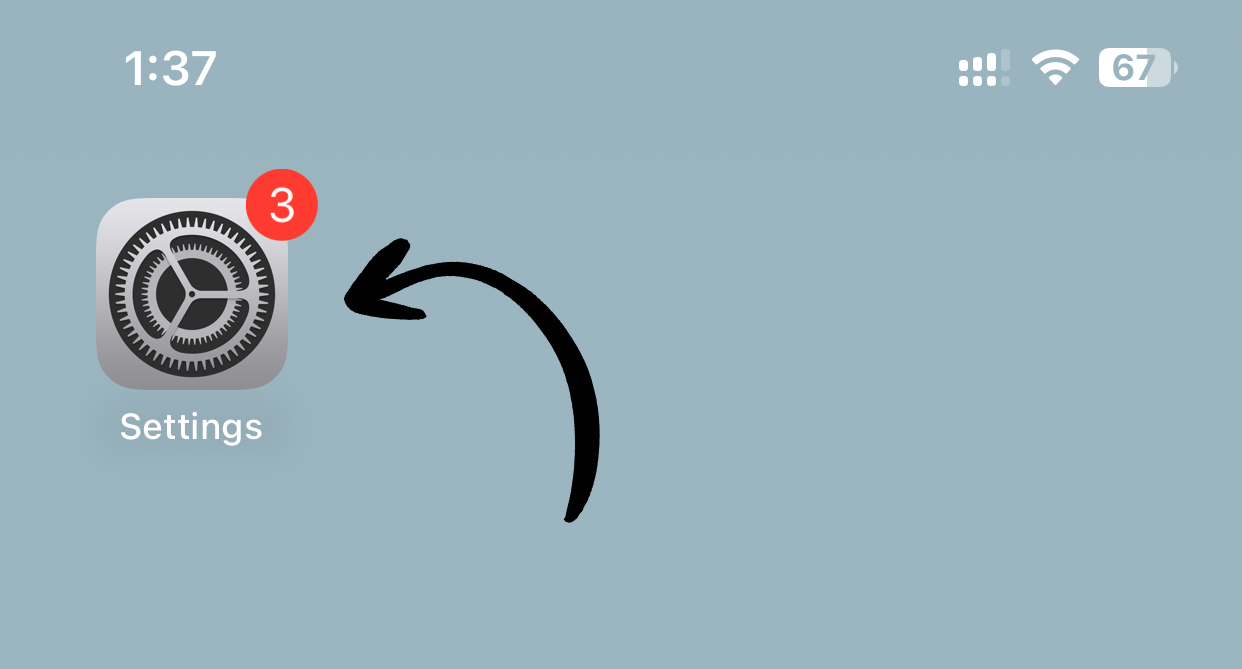
1. Open Settings
Tap Settings on your home screen.
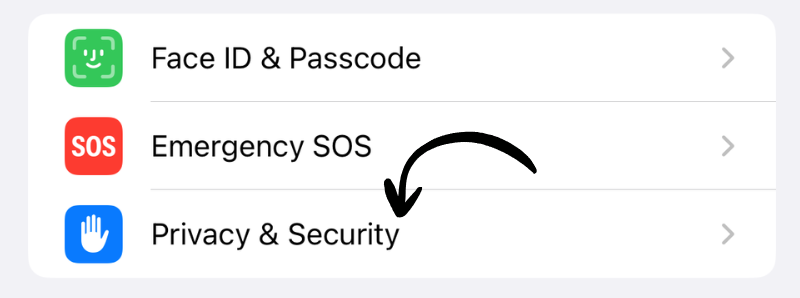
2. Go to Privacy & Security
Tap Privacy & Security (or just Privacy on older iOS).
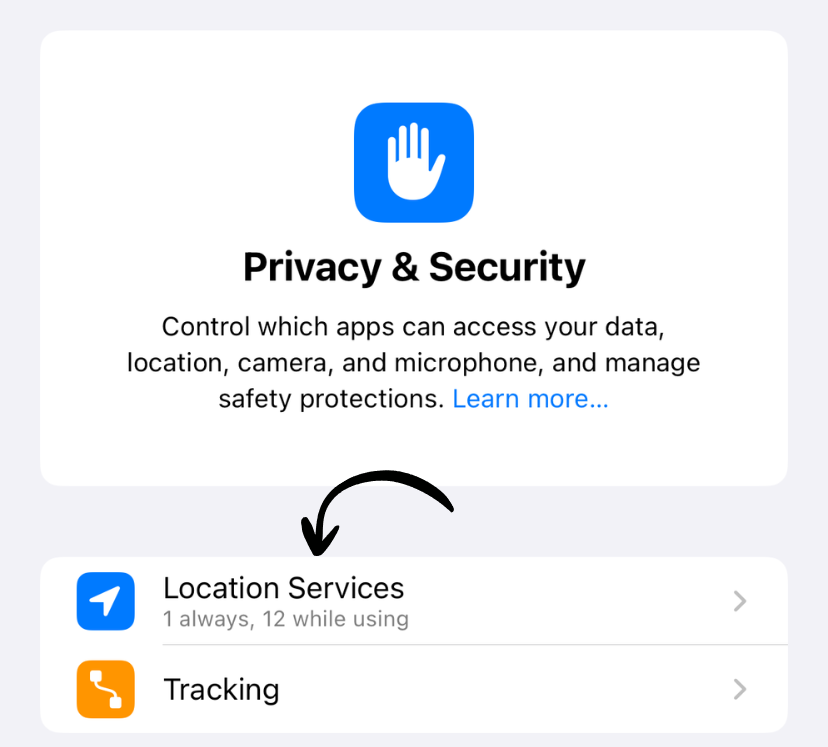
3. Tap Location Services
Tap Location Services at the top.
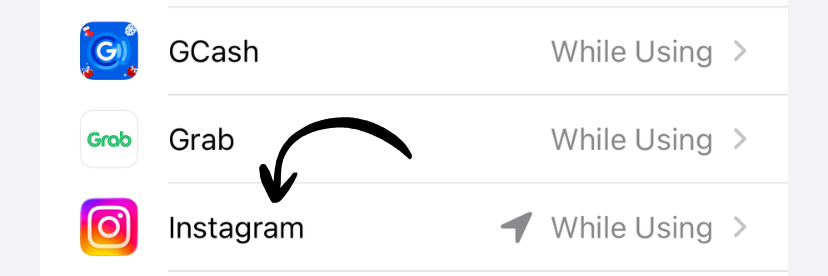
4. Review App Permissions
Scroll through the list and tap each app to adjust its location access.
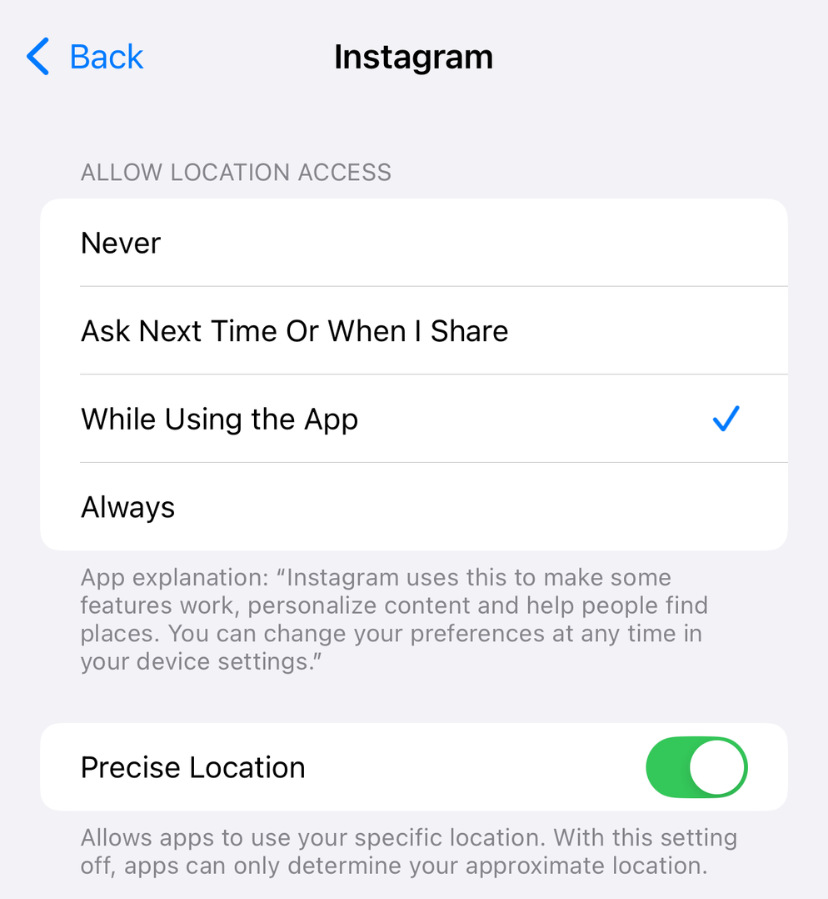
Location Permission Options
For each app, you can choose:
Never
- App cannot access location ever
- Best for privacy
- Best for battery
- Use for apps that don’t need location
Ask Next Time Or When I Share
- App asks permission each time
- Good for occasional use
- Moderate battery usage
- Recommended for most apps
While Using the App
- Only when app is open and in use
- Balanced privacy and functionality
- Moderate battery usage
- Good default choice
Always
- Even when app is closed or in background
- Highest battery drain
- Use sparingly
- Only for navigation, fitness trackers, Find My
Recommended Settings by App Type
Navigation Apps (Maps, Waze, Google Maps)
Setting: While Using the App Why: Only need location while navigating
Social Media (Facebook, Instagram, Twitter)
Setting: Ask Next Time or Never Why: Don’t need constant location tracking
Weather Apps
Setting: While Using the App Why: Only need location to show local weather
Fitness/Health Apps (Strava, Nike Run Club)
Setting: While Using the App (or Always for automatic tracking) Why: Need location during workouts
Shopping Apps (Amazon, eBay)
Setting: Never or Ask Next Time Why: Rarely need location for shopping
Camera App
Setting: While Using the App Why: For geotagging photos (optional)
Find My
Setting: Always Why: Need to track device location when lost
Additional Location Settings
Precise Location
For each app, you can toggle Precise Location:
On:
- Exact GPS coordinates
- More accurate
- Higher battery usage
Off:
- Approximate location (city-level)
- More private
- Lower battery usage
Recommendation: Turn off for apps that don’t need exact location (weather, news).
System Services
At the bottom of Location Services, tap System Services to manage:
Disable these for battery savings:
- ✅ iPhone Analytics
- ✅ Popular Near Me
- ✅ Routing & Traffic
- ✅ Product Improvement
- ✅ Significant Locations
Keep enabled:
- ❌ Emergency Calls & SOS
- ❌ Find My iPhone
- ❌ Set Time Zone
Battery Impact
Location Services battery usage:
- GPS (Always): 15-25% battery per day
- GPS (While Using): 5-10% battery per day
- Wi-Fi/Cellular location: 2-5% battery per day
- Disabled: 0% battery usage
Privacy Considerations
What apps can see:
- Your exact location (with Precise Location on)
- Your approximate location (with Precise Location off)
- Location history (if app stores it)
What Apple sees:
- Minimal location data for system services
- Can be disabled in System Services
Best practices:
- Only grant location to apps you trust
- Use “While Using” instead of “Always” when possible
- Disable Precise Location for apps that don’t need it
- Periodically review and revoke unused permissions
How to See Which Apps Recently Used Location
Status Bar Icons:
- Purple arrow: App currently using location
- Gray arrow: App recently used location
- Hollow arrow: Geofence (region monitoring)
In Settings:
- Apps with recent location use show a purple or gray arrow
What Happens When You Disable Location?
You’ll lose:
- Location-based reminders
- Automatic time zone updates
- Geotagged photos
- Navigation features
- Location-based app features
You’ll keep:
- All other app functionality
- Battery life
- Privacy
Disable Location Services Completely
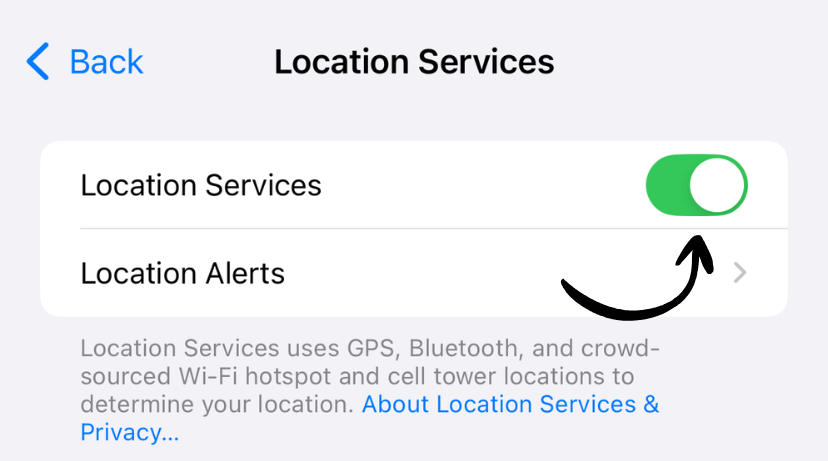
To turn off all location services:
- Settings > Privacy > Location Services
- Toggle off Location Services at the top
- Tap Turn Off to confirm
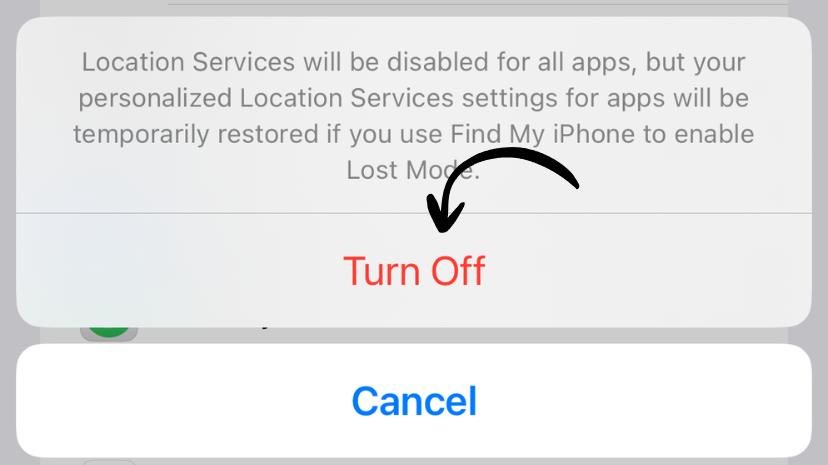
Warning: This disables Find My iPhone, navigation, and all location features.
Our Recommendation
Best balance:
- Navigation apps: While Using the App
- Fitness apps: While Using the App (or Always if needed)
- Social media: Never
- Shopping apps: Never
- Weather: While Using the App (Precise off)
- Camera: While Using the App
- Find My: Always
Result: Save 10-20% battery while keeping useful features.
Works on iPhone and iPad
Location Services settings work identically on iPhone and iPad running iOS 6 or later. Newer iOS versions offer more granular controls like Precise Location.
Related Guides
Clean Up Duplicate Photos Automatically
After optimizing your settings, use Dedupify to find and remove duplicate photos.
Download Dedupify