
How to Optimize iPhone & iPad Storage with iCloud Photos
Store full photos in iCloud and save up to 50GB of space on your device. Step-by-step guide with screenshots.
Or follow the steps below manually
Save up to 50GB of iPhone or iPad storage by storing your original photos in iCloud while keeping optimized versions on your device.
Why This Matters
Every photo you take in full resolution can be 3-5MB. With thousands of photos, this quickly fills your device. iCloud Photos solves this by:
- Storing original high-resolution photos in iCloud
- Keeping smaller, optimized versions on your device
- Automatically managing storage based on available space
- Letting you access all photos anytime
Typical savings: 20-50GB depending on your photo library size.
Step-by-Step Guide
1. Open Settings App
Tap the Settings icon on your home screen.

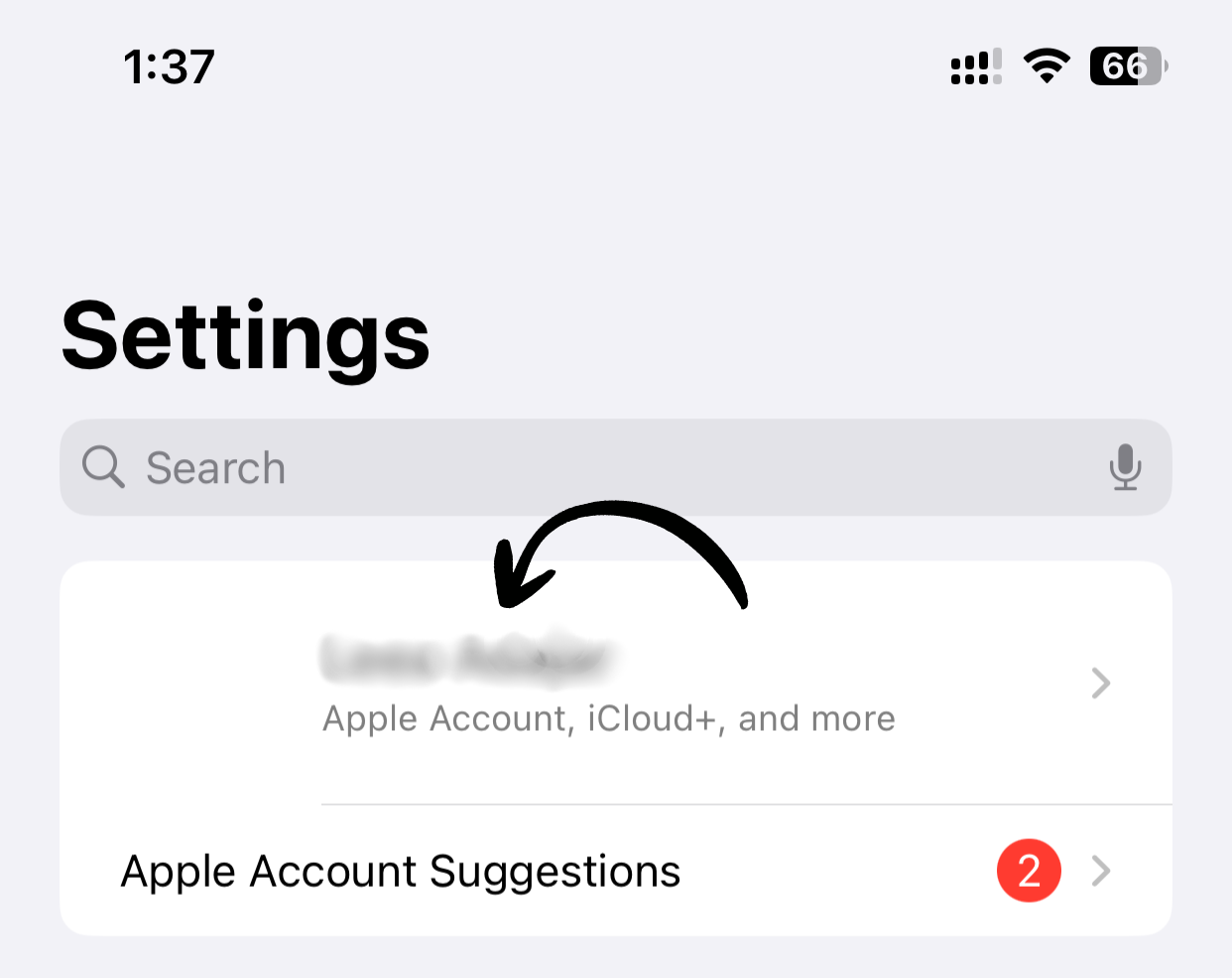
2. Tap Your Name
At the top of Settings, tap your name to access Apple ID settings.
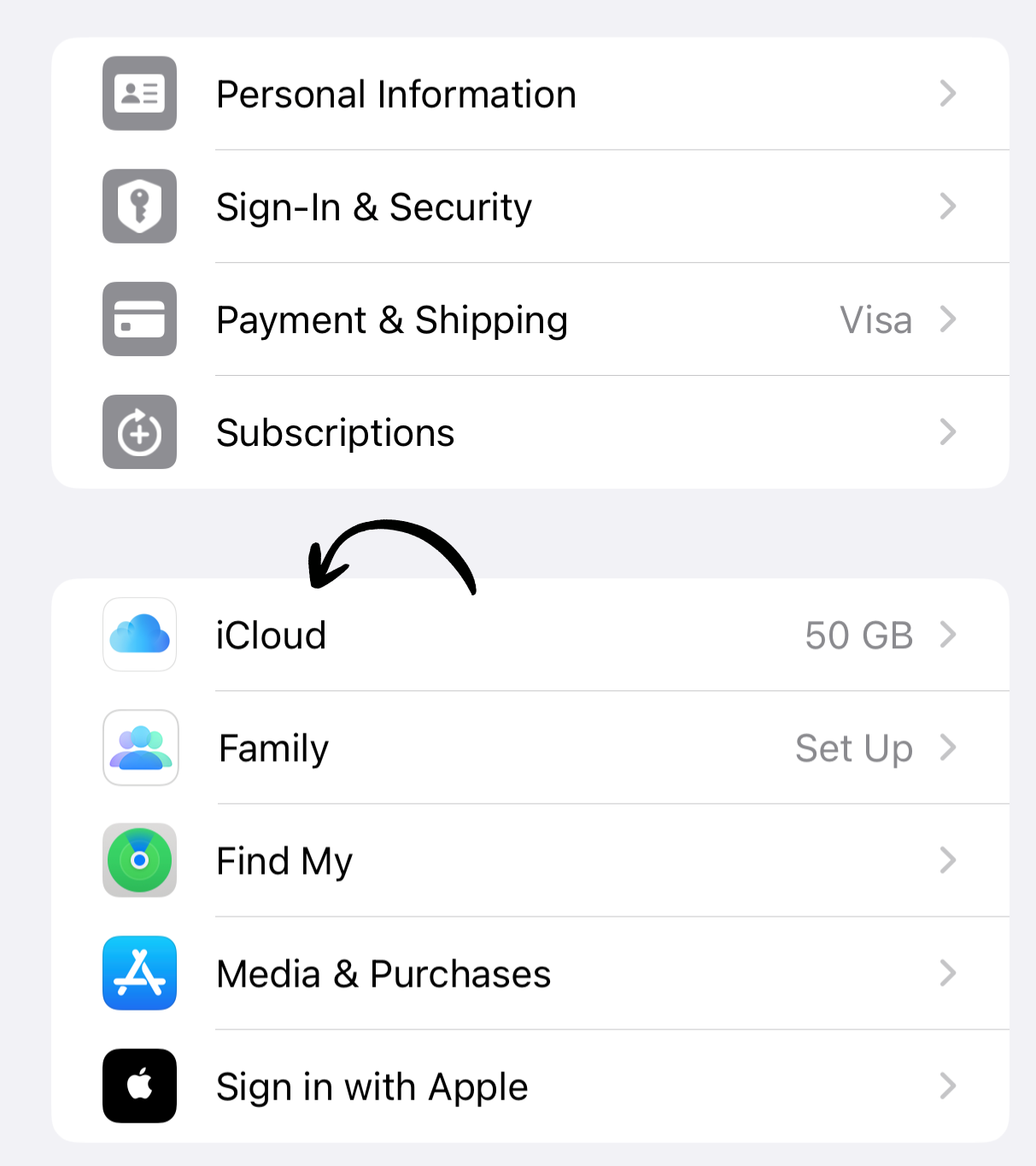
3. Select iCloud
Tap iCloud from the menu.
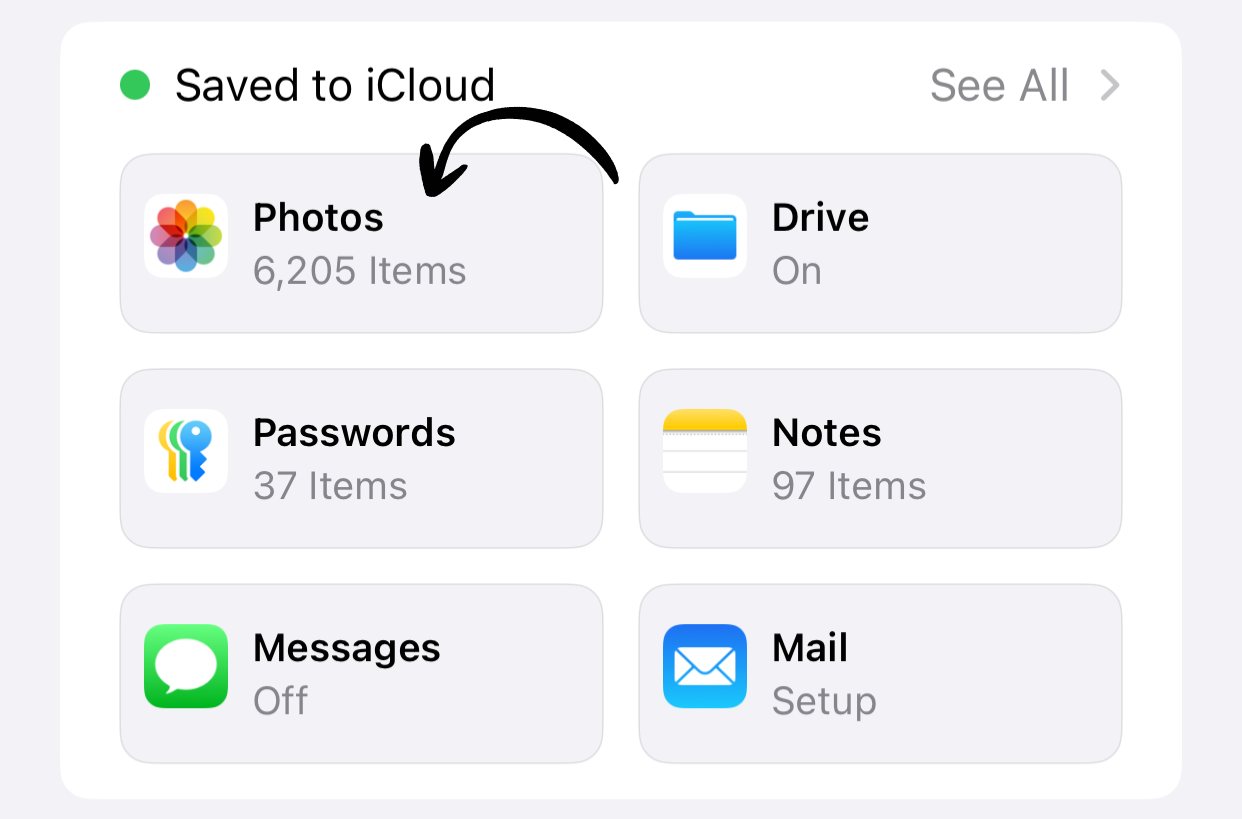
4. Tap Photos
Find and tap Photos in the list of apps using iCloud.
5. Enable Optimize iPhone Storage
Toggle on Optimize iPhone Storage (or Optimize iPad Storage on iPad).
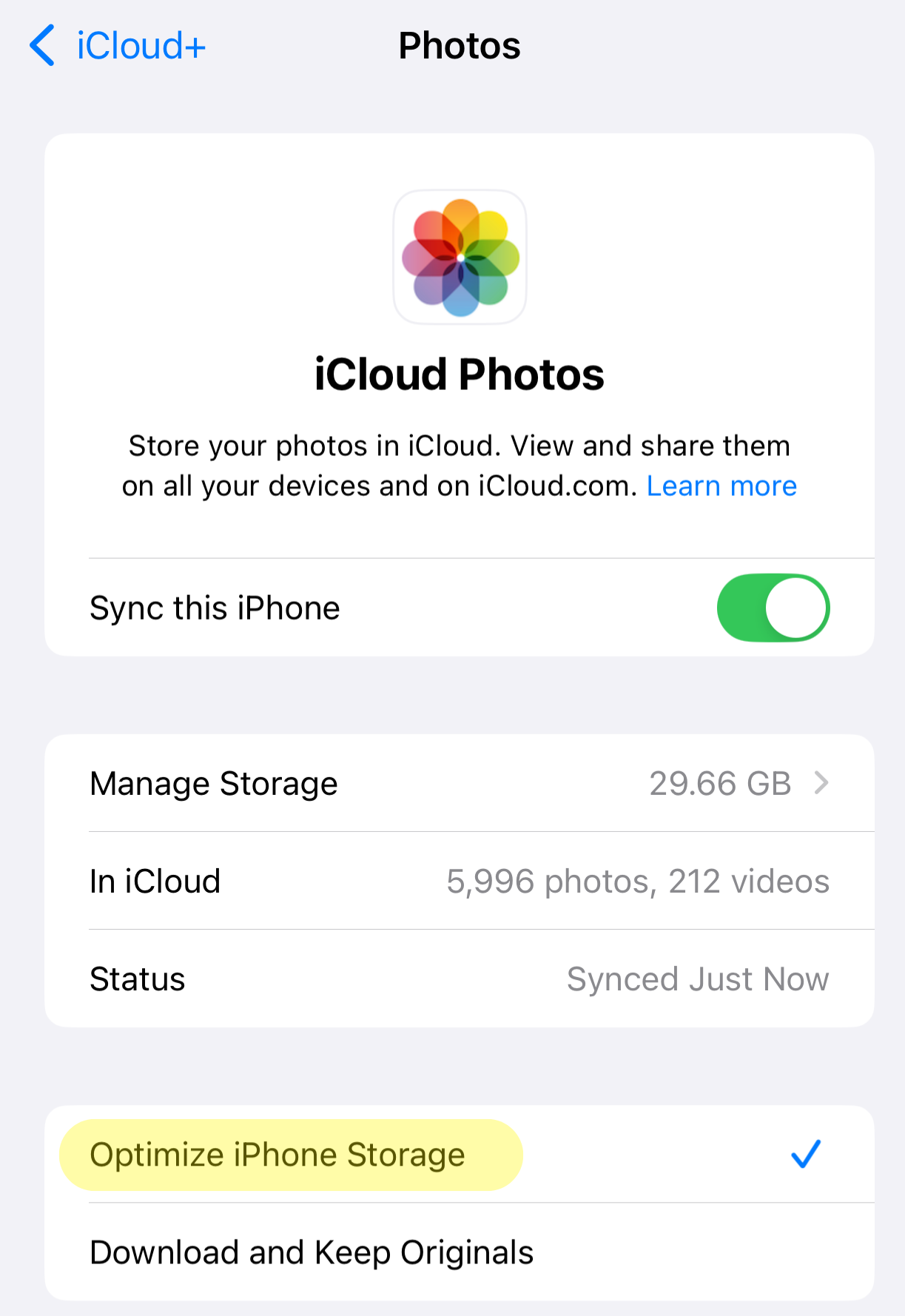
✅ Done! Your device will now automatically manage photo storage.
What Happens Next
- Your full-resolution photos upload to iCloud (requires Wi-Fi)
- Device keeps optimized versions that take less space
- When you view a photo, the full version downloads automatically
- Storage is freed up gradually as originals upload
Requirements
- iCloud account (free 5GB or paid plan)
- Sufficient iCloud storage for your photo library
- Wi-Fi connection for initial upload
FAQ
Q: Will I lose access to my photos? A: No, all photos remain accessible. The full version downloads when you view it.
Q: What if I run out of iCloud storage? A: You’ll need to upgrade your iCloud plan or free up space.
Q: Can I get the originals back? A: Yes, disable “Optimize iPhone Storage” and originals will re-download.
Works on Both iPhone and iPad
This guide works identically on both iPhone and iPad. The setting may be labeled “Optimize iPhone Storage” or “Optimize iPad Storage” depending on your device.
Related Guides
Clean Up Duplicate Photos Automatically
After optimizing your settings, use Dedupify to find and remove duplicate photos.
Download Dedupify