
How to Enable High Efficiency Formats (HEIF/HEVC) on iPhone & iPad
Use efficient HEIF and HEVC formats to reduce photo and video file sizes by up to 50%.
Or follow the steps below manually
Cut your photo and video storage usage in half by using modern High Efficiency formats.
Why This Matters
High Efficiency formats (HEIF for photos, HEVC for videos) provide:
- Same visual quality as JPEG/H.264
- 50% smaller file sizes
- Better compression technology
- Support for advanced features (Live Photos, depth data)
Storage savings: 40-50% for both photos and videos
What Are HEIF and HEVC?
HEIF (High Efficiency Image Format)
- Modern photo format replacing JPEG
- Introduced with iOS 11
- Extension: .heic
HEVC (High Efficiency Video Coding)
- Modern video format replacing H.264
- Also called H.265
- Much more efficient compression
Step-by-Step Guide
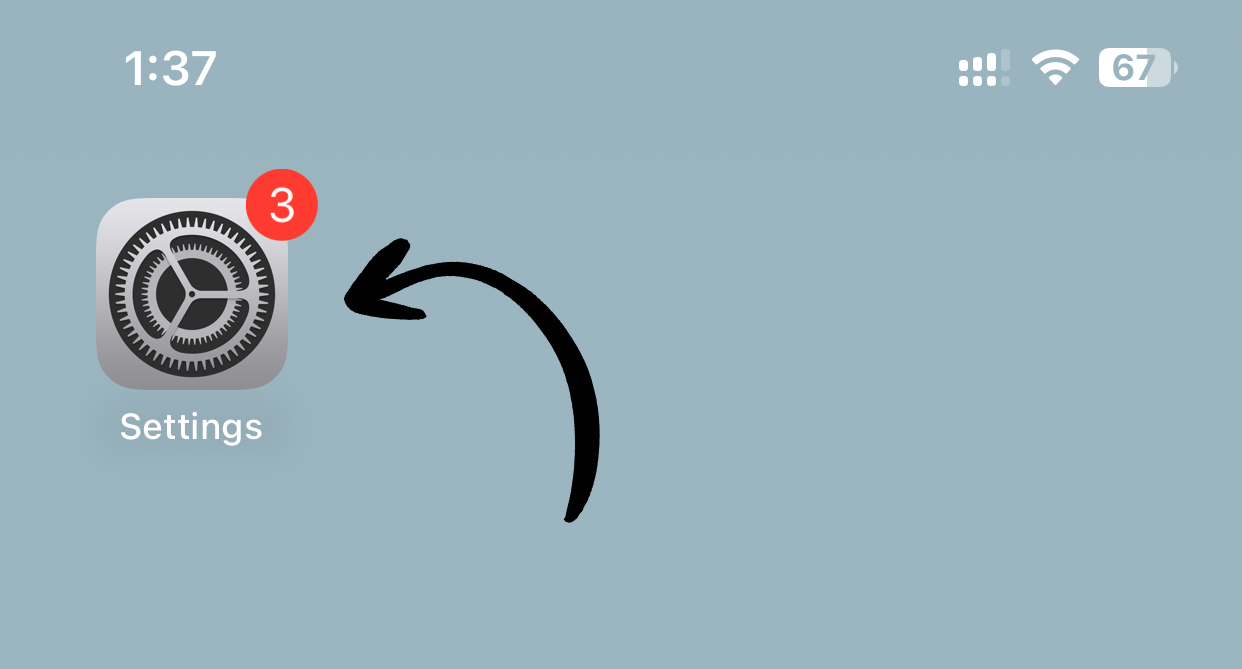
1. Open Settings
Tap Settings on your home screen.
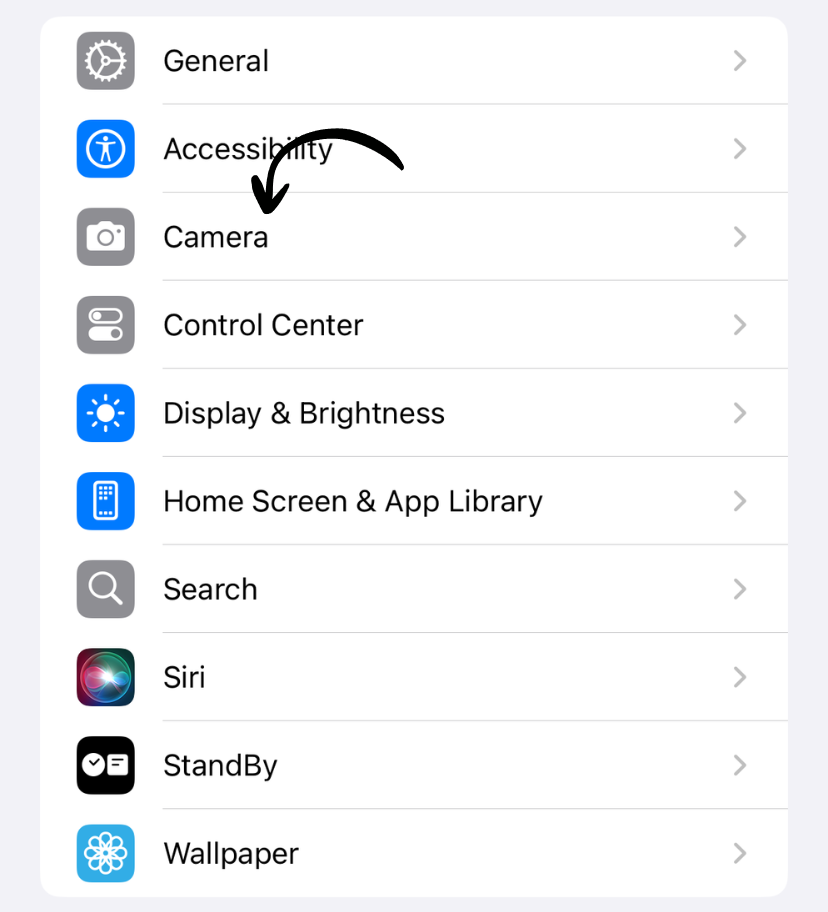
2. Go to Camera
Scroll down and tap Camera.
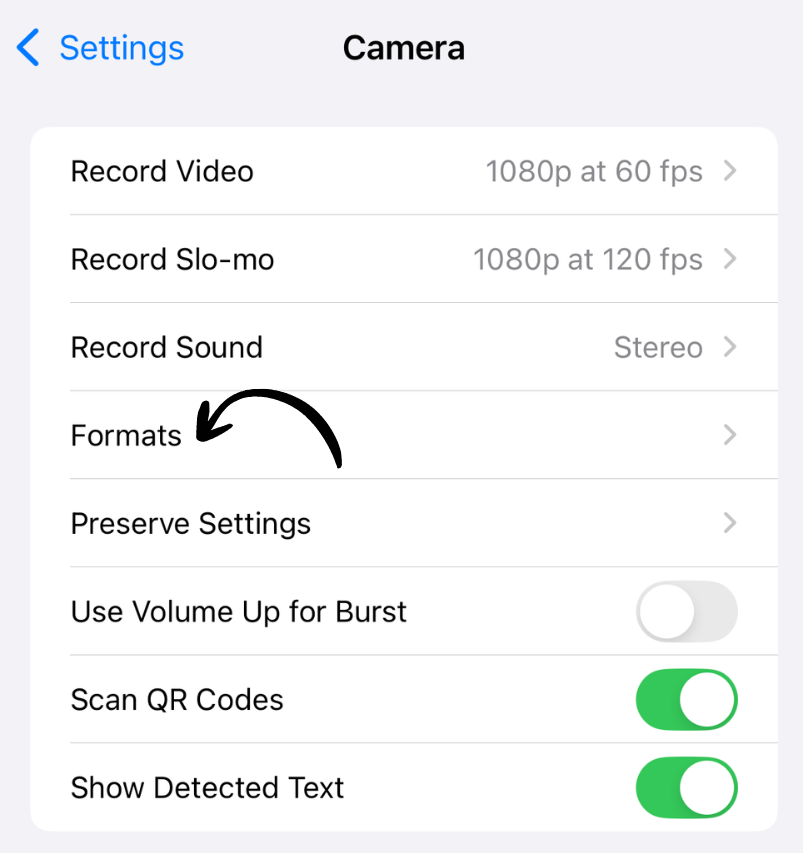
3. Tap Formats
Tap Formats near the top.
4. Select High Efficiency
Tap High Efficiency.
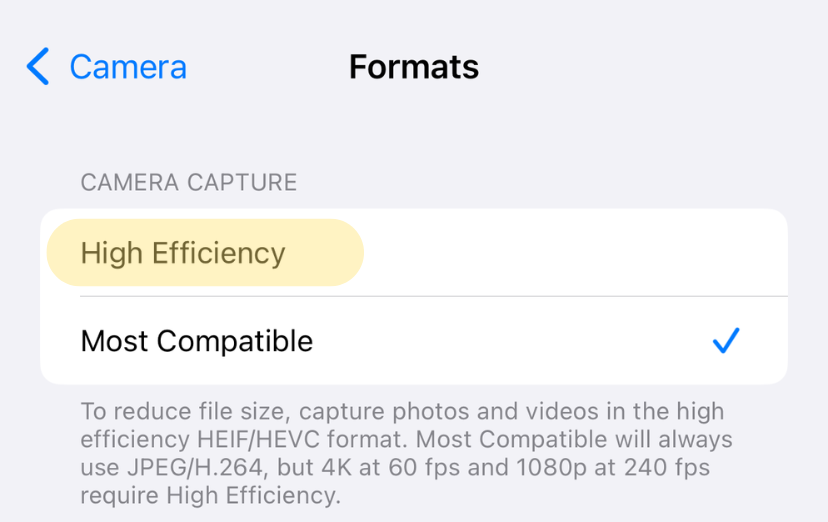
✅ Done! New photos and videos will use efficient formats.
What Changes?
Before (Most Compatible):
- Photos: JPEG (.jpg)
- Videos: H.264 (.mov)
- Photo size: 3-5MB
- Video: 200MB per minute
After (High Efficiency):
- Photos: HEIF (.heic)
- Videos: HEVC (.mov)
- Photo size: 1-2MB (50% smaller)
- Video: 100MB per minute (50% smaller)
File Size Comparison
1000 photos:
- JPEG: 3-5GB
- HEIF: 1.5-2.5GB
- Savings: ~2GB
10 minutes of video:
- H.264: 2GB
- HEVC: 1GB
- Savings: 1GB
Compatibility
Works with:
- ✅ iPhone and iPad (iOS 11+)
- ✅ Mac (macOS High Sierra+)
- ✅ Windows 10+ (with codec installed)
- ✅ Google Photos
- ✅ iCloud Photos
- ✅ Most modern apps
May not work with:
- ❌ Very old computers
- ❌ Some Android devices (older models)
- ❌ Some older photo editing software
- ❌ Some website upload forms
When to Use Most Compatible
Choose “Most Compatible” (JPEG/H.264) if you:
- Regularly share with users on old devices
- Use older photo editing software
- Need maximum compatibility
- Work with professional photography (some prefer RAW)
Note: You can always change back anytime.
Sharing Photos in Compatible Formats
Even with High Efficiency enabled, iOS automatically converts to JPEG when:
- Sharing via email
- Sharing via Messages (to non-Apple devices)
- Uploading to most websites
- Using AirDrop to incompatible devices
You get the best of both worlds: Efficient storage + compatible sharing.
Does Quality Suffer?
No. HEIF and HEVC provide:
- Same or better visual quality
- Same color depth
- Better compression algorithm
- Support for more features (depth, wide color)
Professional photographers and Apple engineers designed these formats to maintain quality while reducing file size.
Storage Impact Over Time
1 year of photos (5000 photos, 100 videos):
- JPEG/H.264: 35-40GB
- HEIF/HEVC: 18-20GB
- Total savings: ~20GB
5 years:
- Savings: ~100GB
How to Check Current Format
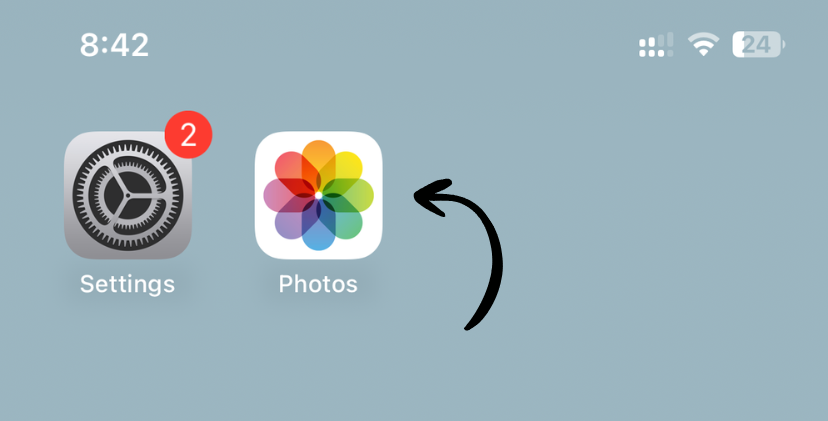
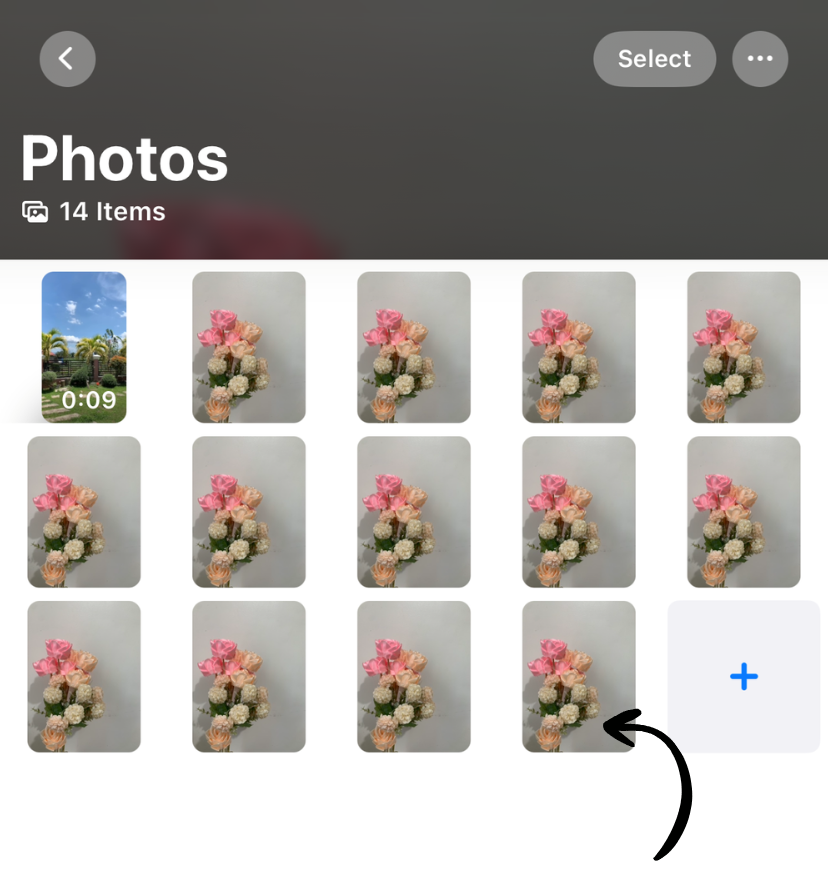
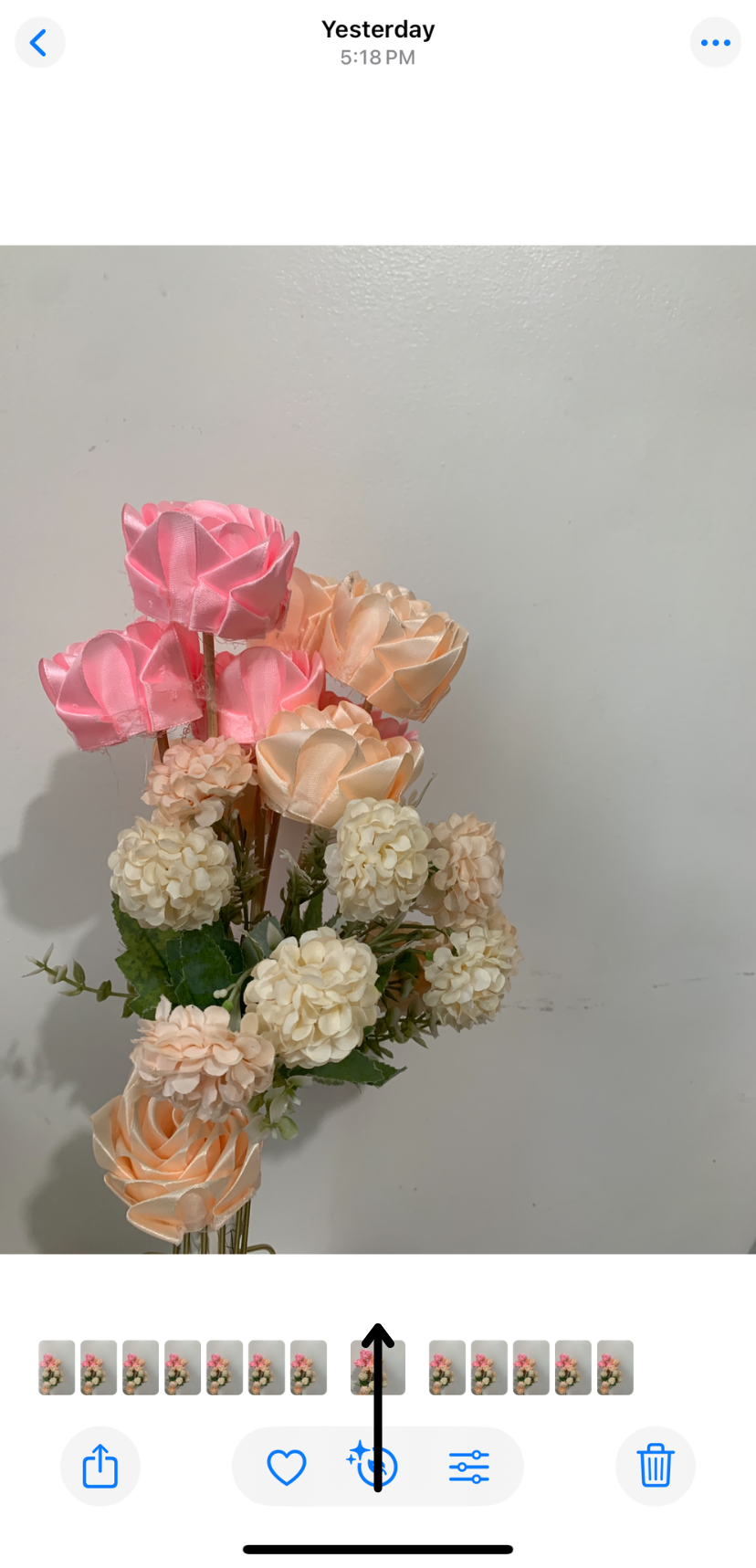
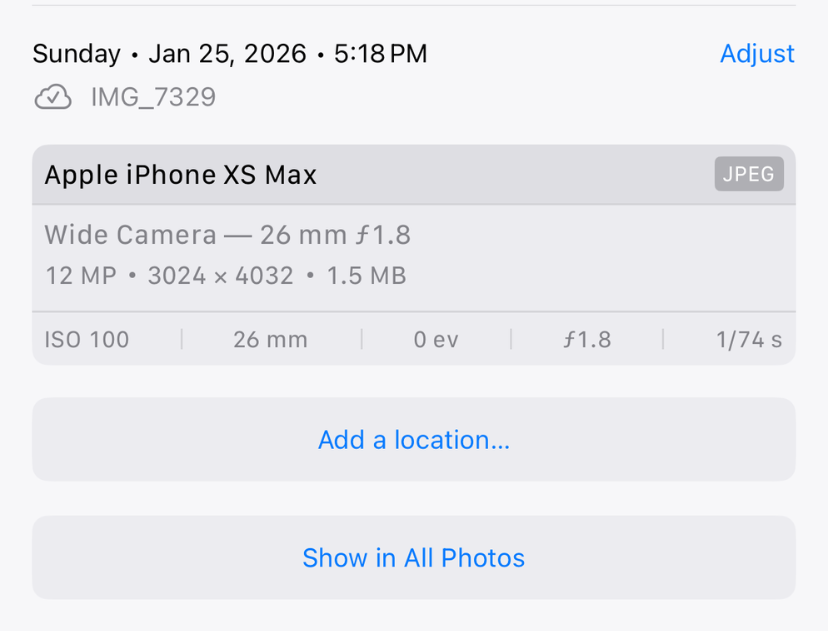
For a photo:
- Open Photos app
- Select a photo
- Swipe up
- Look at file format info
For a video:
- Open Photos app
- Select a video
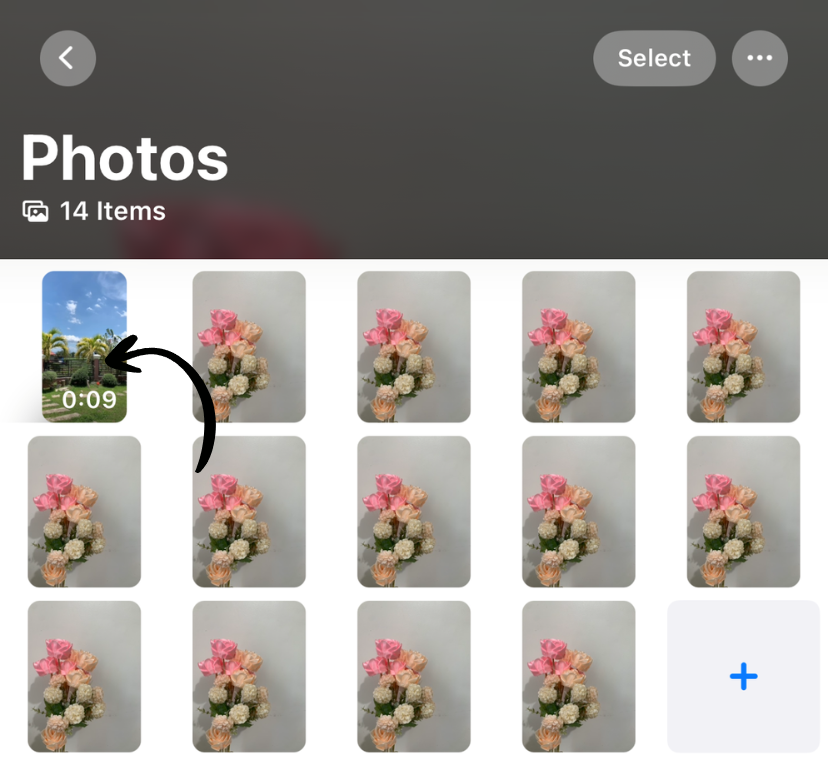
- Swipe up
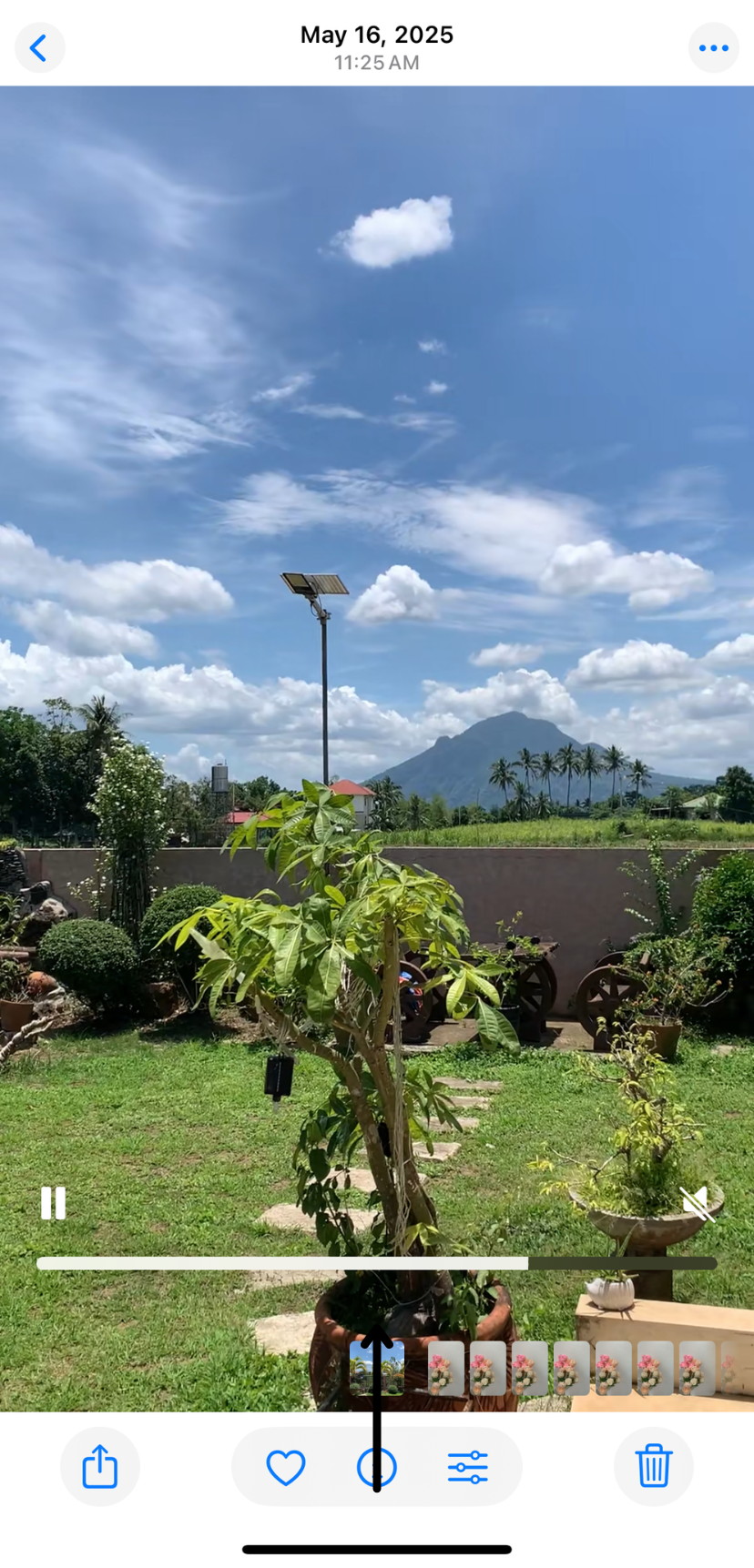
- Check codec info
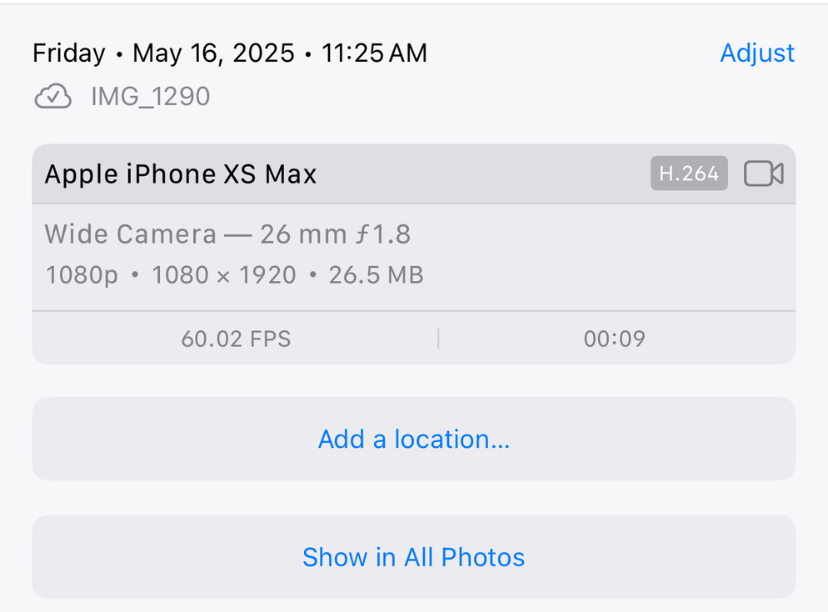
Converting Existing Photos
Existing photos stay in their current format. High Efficiency only affects:
- New photos you take
- New videos you record
To convert existing photos, you’d need a third-party app or computer software.
Our Recommendation
Enable High Efficiency unless you have a specific reason not to.
Benefits far outweigh drawbacks:
- ✅ 50% storage savings
- ✅ Same quality
- ✅ Automatic conversion when sharing
- ✅ Future-proof format
Works on iPhone and iPad
High Efficiency formats are supported on:
- iPhone 7 and later
- iPad (6th generation) and later
- iPad Pro (all models)
- iPad Air (3rd generation) and later
- iPad mini (5th generation) and later
All running iOS 11 or later.
Related Guides
Clean Up Duplicate Photos Automatically
After optimizing your settings, use Dedupify to find and remove duplicate photos.
Download Dedupify