
How to Clear Safari Cache and Website Data on iPhone & iPad
Clear browsing data and cached files from Safari to free up storage space on your iPhone or iPad.
Or follow the steps below manually
Free up 500MB to 5GB of storage by clearing Safari’s cached files, cookies, and browsing data.
Why This Matters
As you browse the web, Safari stores:
- Cached images and files for faster page loading
- Cookies and website data
- Browsing history
- Download history
Over time, this data accumulates and can consume several gigabytes of storage.
Benefits of clearing:
- Free up storage space immediately
- May fix website loading issues
- Reset website preferences
- Improve Safari performance
Step-by-Step Guide
1. Open Settings
Tap Settings on your home screen.

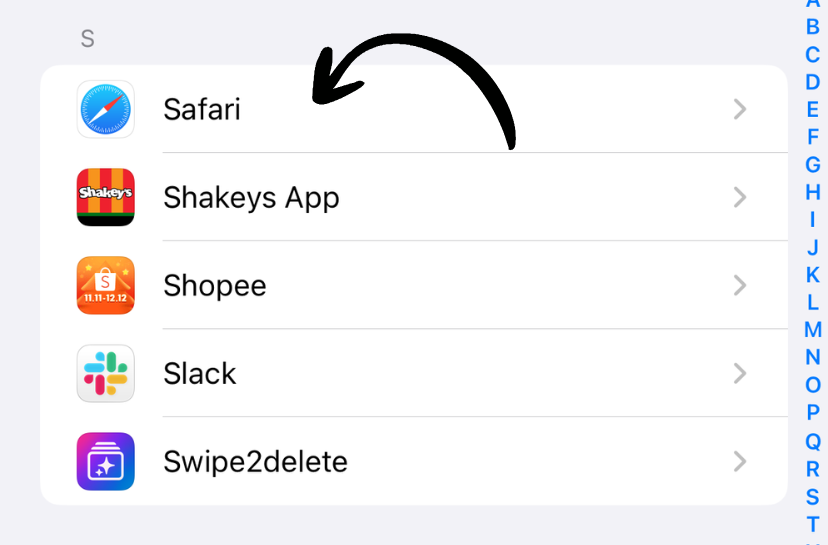
2. Scroll to Safari
Scroll down and tap Safari.
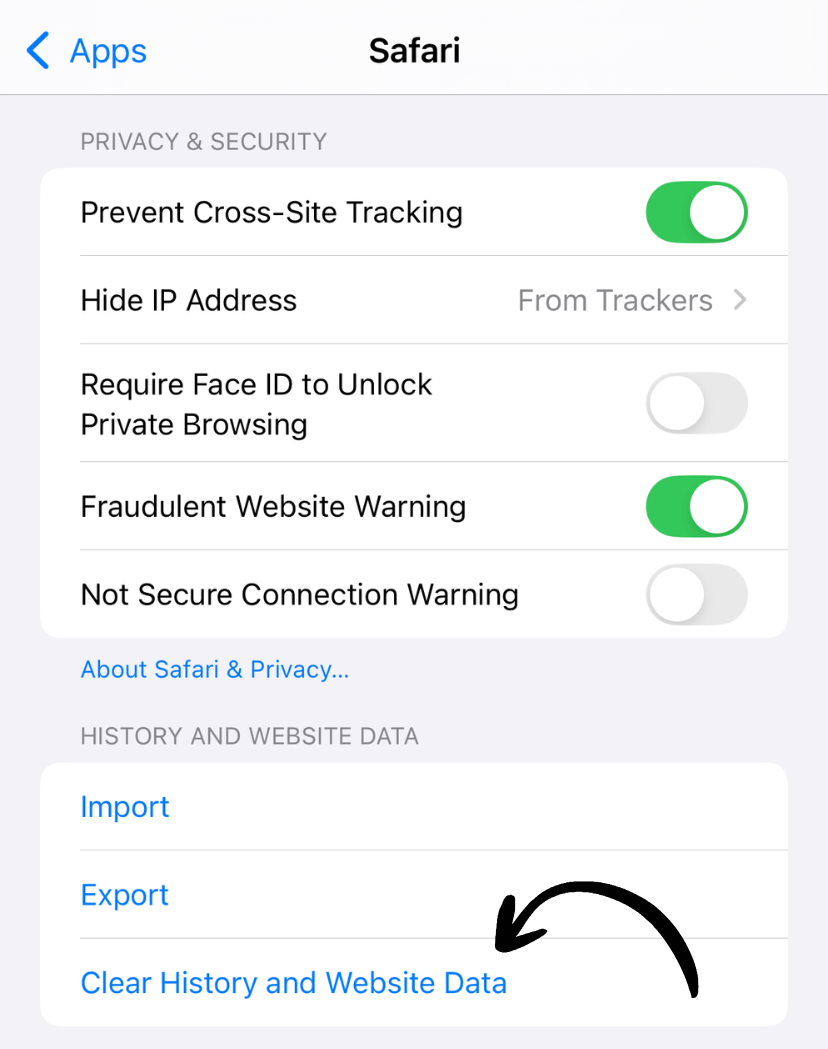
3. Clear History and Website Data
Scroll down and tap Clear History and Website Data.
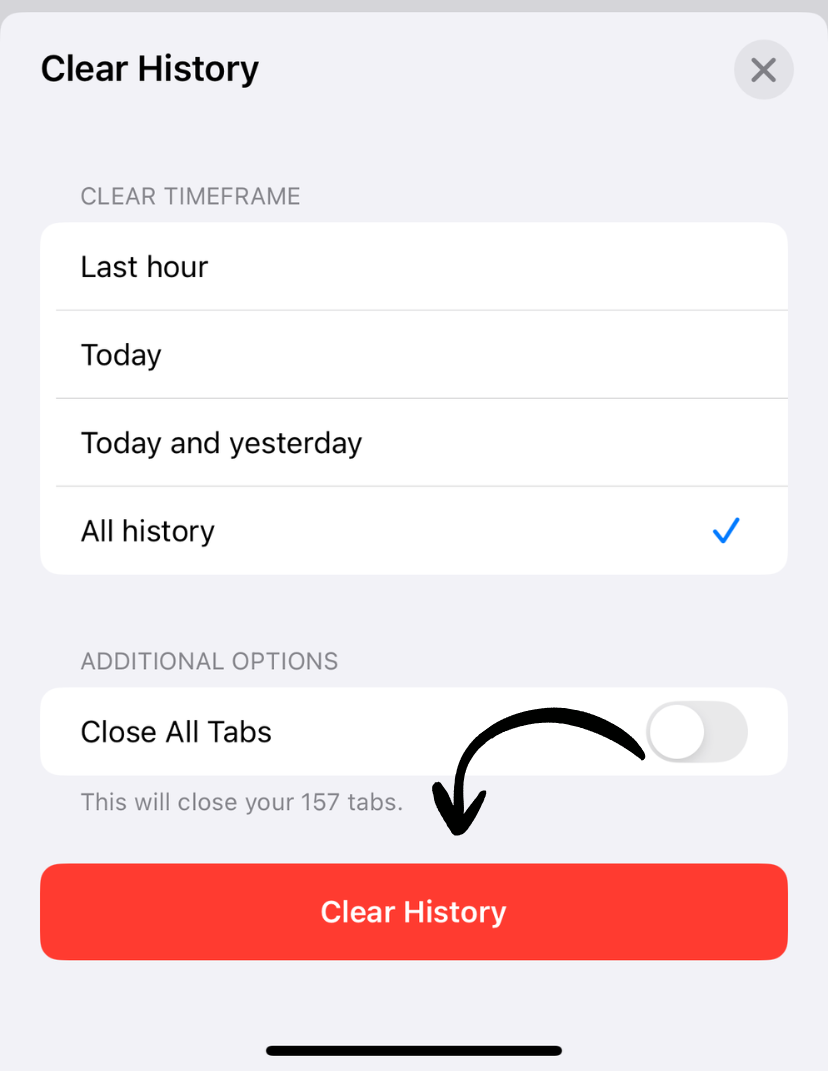
4. Confirm
Tap Clear History in the popup.
✅ Done! Safari cache is cleared.
What Gets Deleted
When you clear Safari data, you remove:
- Browsing history
- Cookies (you’ll be logged out of websites)
- Cached images and files
- Download history
- AutoFill information
What Stays
The following are NOT deleted:
- Bookmarks
- Reading List items
- Saved passwords (in Keychain)
- AutoFill credit card information
Alternative: Clear Cache Only (Keep History)
If you want to keep your browsing history but clear cached files:
1. Settings → Safari
Go to Settings → Safari.
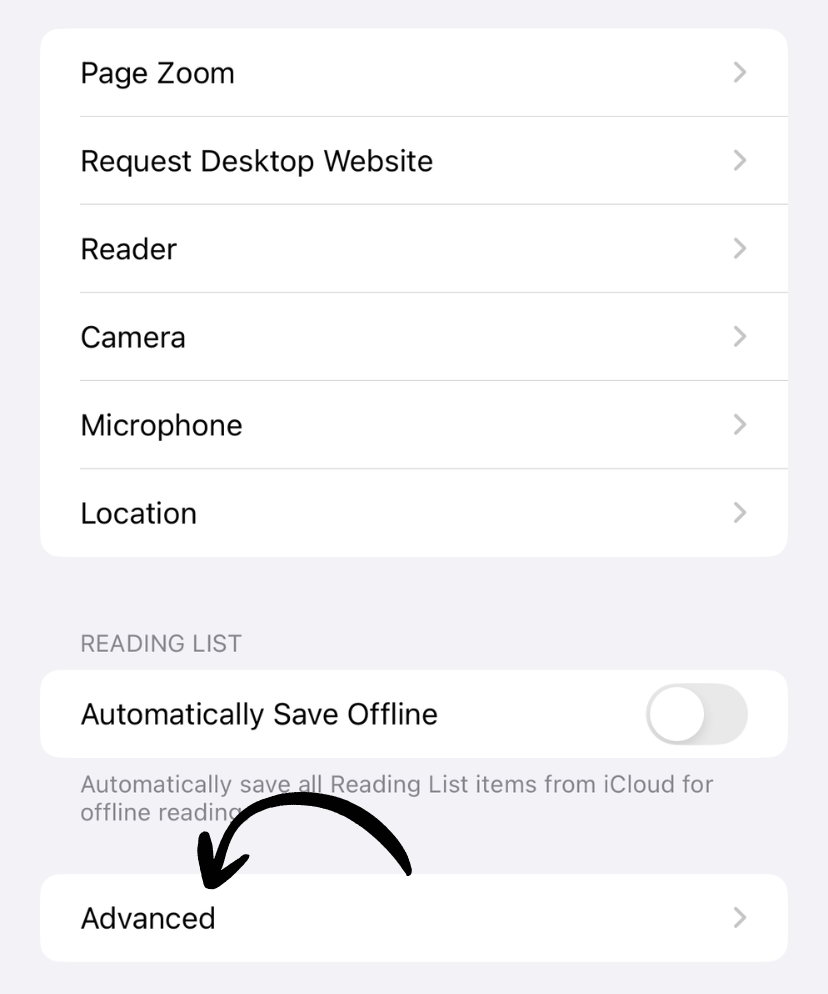
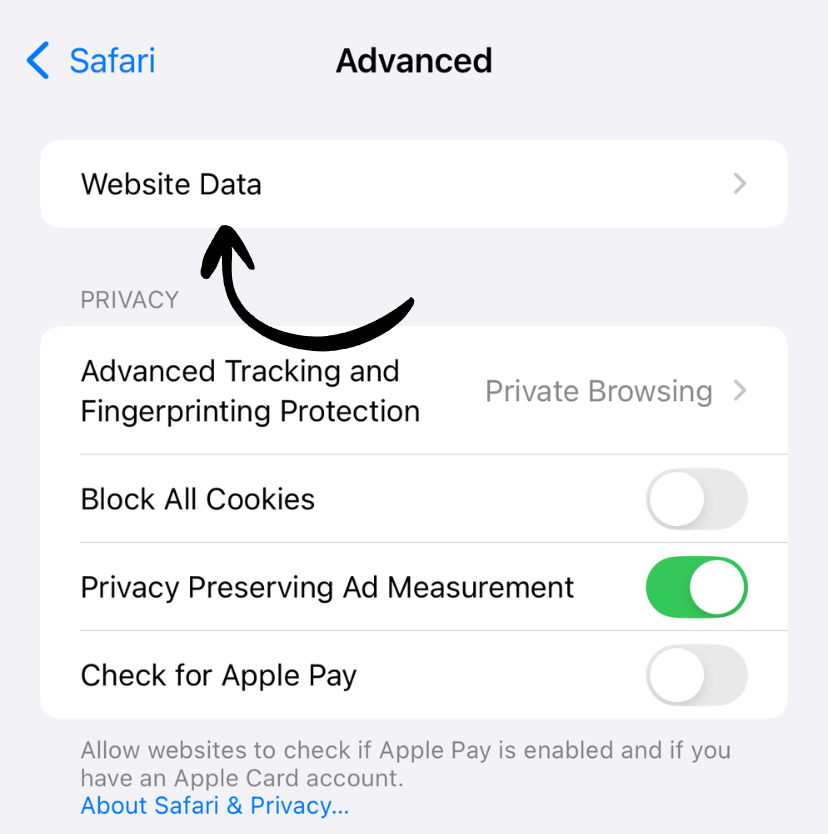
2. Advanced → Website Data
Tap Advanced → Website Data.
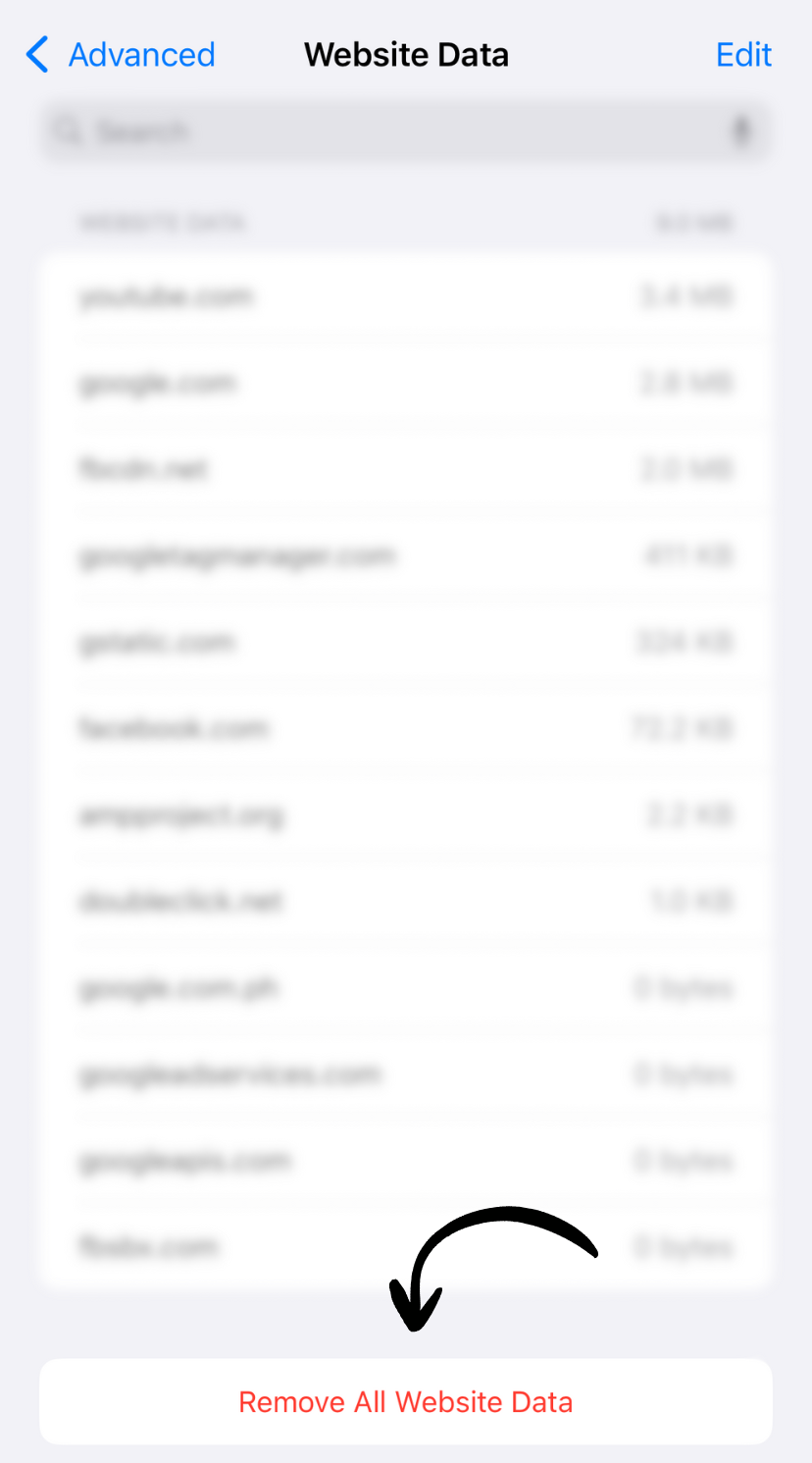
3. Remove All Website Data
Tap Remove All Website Data at the bottom.
This clears cached files but keeps your browsing history.
How Much Space Will I Save?
Typical savings depend on usage:
- Light browsers: 500MB - 1GB
- Regular users: 1GB - 3GB
- Heavy users: 3GB - 5GB+
To check exactly how much space Safari is using: Settings → General → iPhone Storage → Safari
Important Notes
⚠️ You’ll be logged out of all websites. Make sure you know your passwords.
💡 Tip: Consider using iCloud Keychain to remember passwords automatically.
How Often Should You Clear Cache?
Recommended schedule:
- Monthly: For regular maintenance
- When low on storage: Immediate space savings
- If websites aren’t loading: Fixes corrupted cache issues
Works on iPhone and iPad
This guide works identically on both iPhone and iPad. All iOS devices use the same Safari settings.
Related Guides
Clean Up Duplicate Photos Automatically
After optimizing your settings, use Dedupify to find and remove duplicate photos.
Download Dedupify