
How to Optimize Camera Settings on iPhone & iPad
Optimize camera quality and performance to balance photo quality with storage usage.
Or follow the steps below manually
Optimize your camera settings to save storage space while maintaining great photo quality.
Why This Matters
Camera settings affect:
- Photo and video file sizes
- Storage space usage
- iCloud storage consumption
- Camera app performance
Potential savings: 30-50% less storage with optimized settings
Step-by-Step Guide
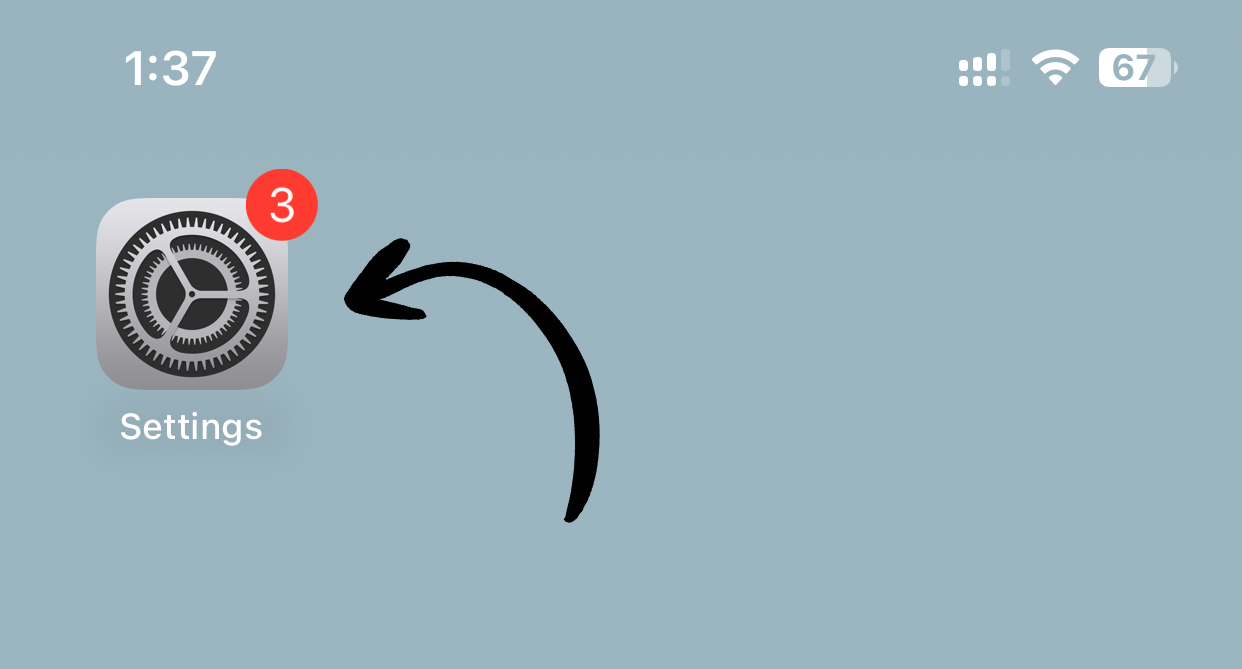
1. Open Settings
Tap Settings on your home screen.
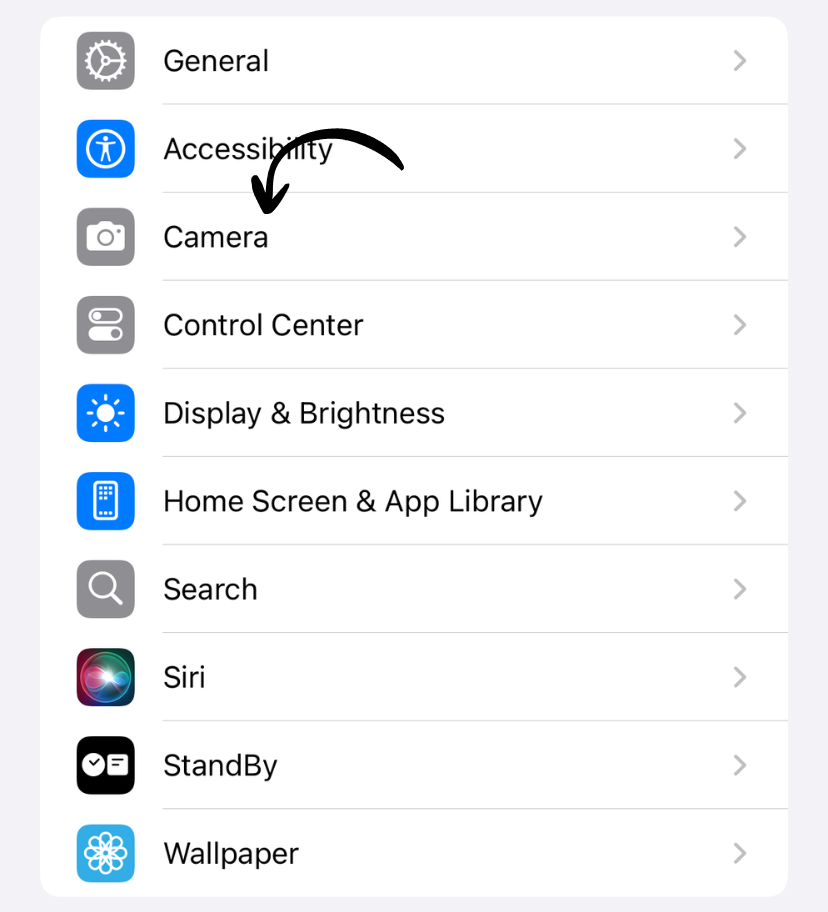
2. Go to Camera
Scroll down and tap Camera.
3. Review These Key Settings
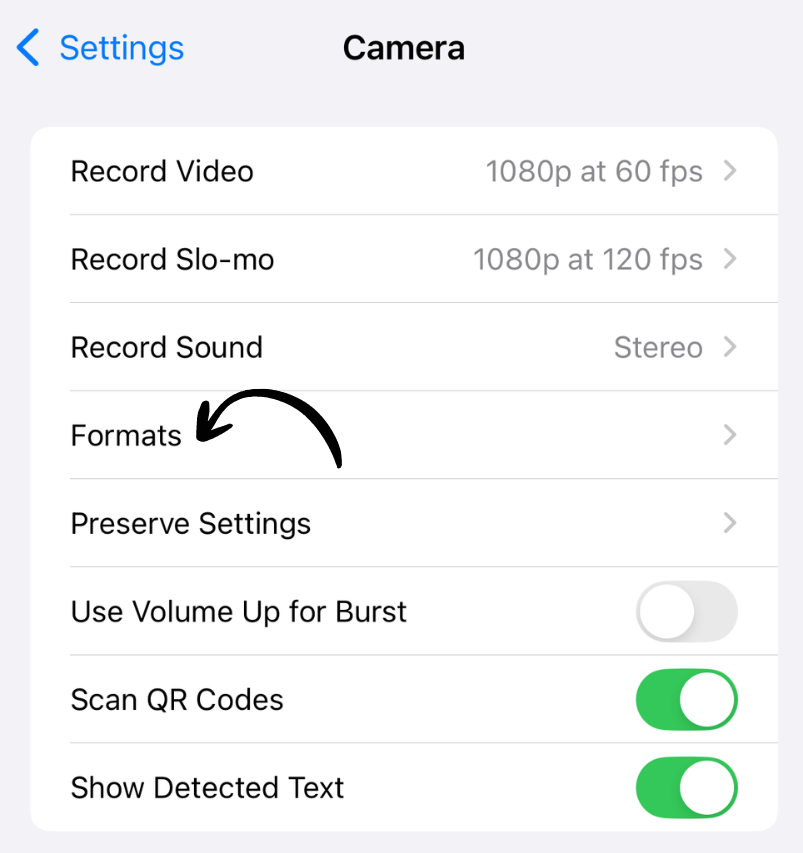
Formats
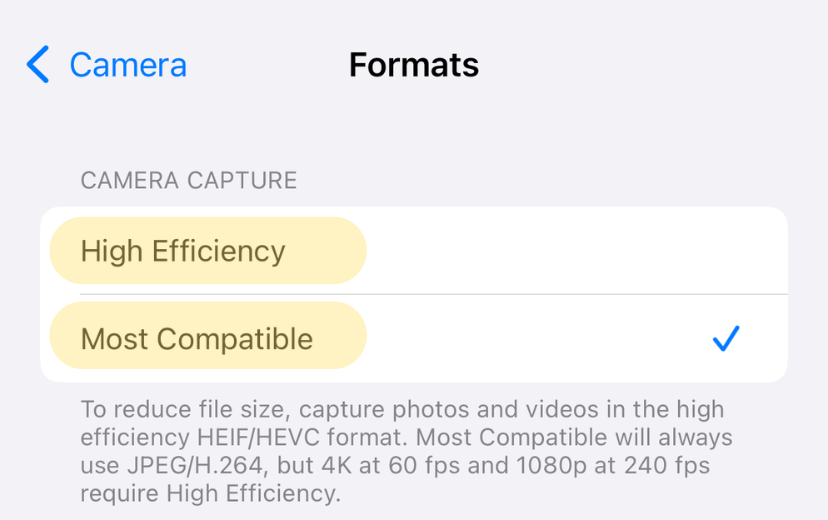
Tap Formats and choose:
High Efficiency (Recommended)
- Uses HEIF for photos, HEVC for videos
- 50% smaller file sizes
- Same visual quality
- Works on iOS 11+
Most Compatible
- Uses JPEG for photos, H.264 for videos
- Larger files
- Better compatibility with older devices
Preserve Settings
Tap Preserve Settings.
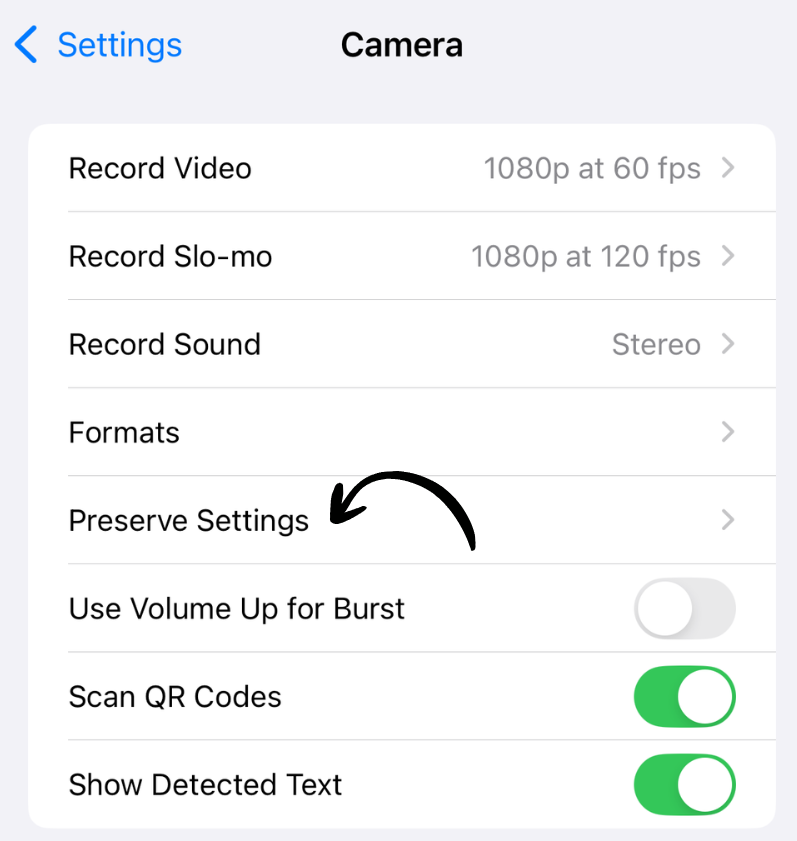
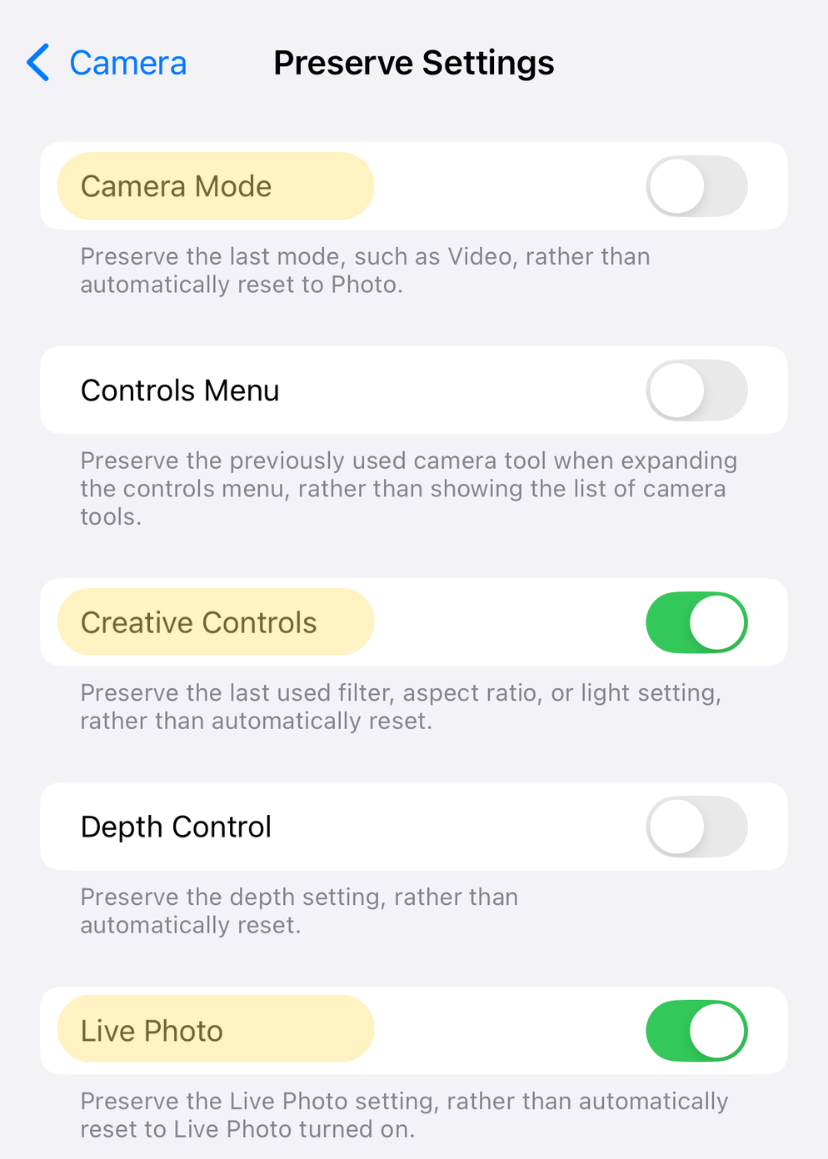
Toggle on settings you want to remember:
- Camera Mode - Remembers Photo, Video, Portrait, etc.
- Creative Controls - Saves exposure, filters
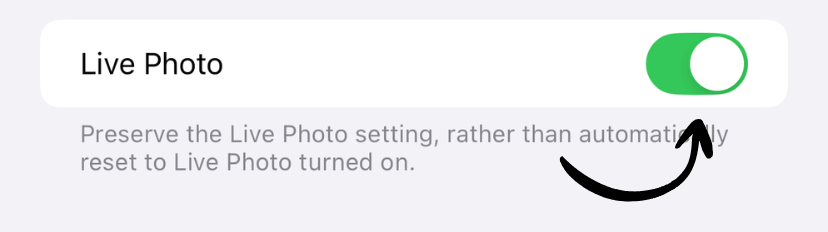
- Live Photo - Keeps Live Photo on/off preference
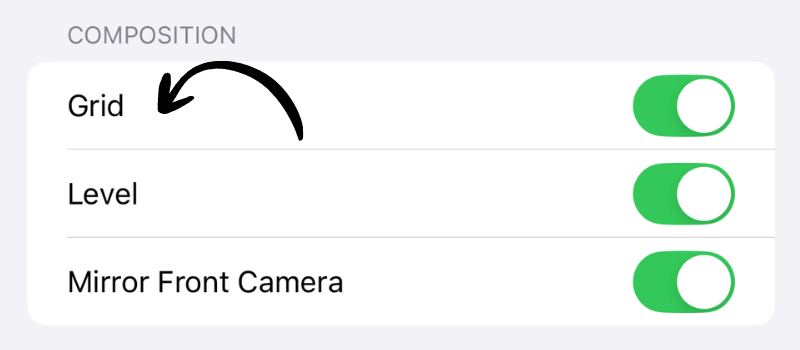
Grid
Toggle on Grid for better composition using rule of thirds.
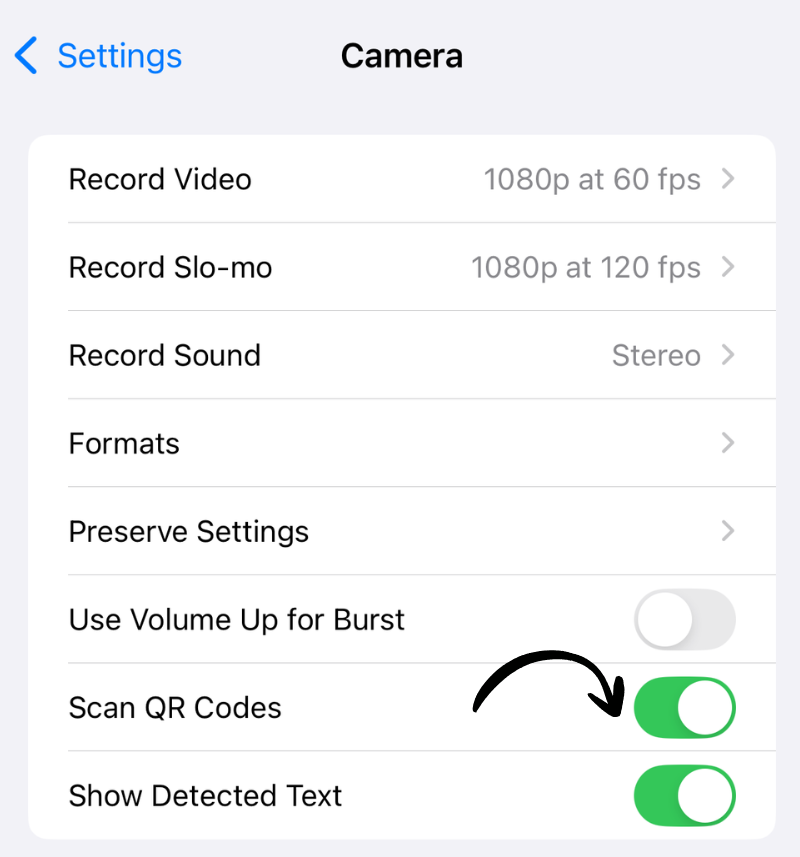
Scan QR Codes
Toggle on Scan QR Codes to automatically detect QR codes.
Recommended Settings for Most Users
✅ Formats: High Efficiency ✅ Grid: On (helps with composition) ✅ Scan QR Codes: On ✅ Preserve Settings: Camera Mode, Live Photo ⚠️ Record Video: 1080p at 30fps (see Video Recording guide)
Advanced Camera Settings
Smart HDR / Photographic Styles (iPhone 12+)
Smart HDR
- Automatically improves dynamic range
- Recommended: On
Photographic Styles (iPhone 13+)
- Choose your preferred color tone
- Options: Standard, Rich Contrast, Vibrant, Warm, Cool
ProRAW (iPhone 12 Pro and later)
What is it:
- Uncompressed photo format
- Maximum editing flexibility
- 10-12x larger file sizes (25-50MB per photo)
When to use:
- Professional photography
- Heavy editing needed
When to disable:
- Everyday photos
- Low storage space
Macro Control (iPhone 13 Pro and later)
Toggle on Macro Control to manually switch to macro mode for extreme close-ups.
Storage Impact
File size comparison (12MP photo):
- HEIF (High Efficiency): 1-2MB
- JPEG (Most Compatible): 2-4MB
- ProRAW: 25-50MB
For 1000 photos:
- HEIF: 1-2GB
- JPEG: 2-4GB
- ProRAW: 25-50GB
Quality Comparison
High Efficiency vs Most Compatible:
- Visual quality: Nearly identical
- File size: 50% smaller with High Efficiency
- Compatibility: High Efficiency works on iOS 11+, macOS High Sierra+
Recommendation: Use High Efficiency unless you regularly share with users on very old devices.
Live Photos
Live Photos capture 1.5 seconds before and after each photo.
Storage impact:
- Live Photo: 2-3x larger than still photo
- 1000 Live Photos: 3-6GB vs 1-2GB for stills
Optimize:
-
Settings > Camera > Preserve Settings
-
Toggle off Live Photo to start with it disabled
-
Enable Live Photo manually for special moments
Works on iPhone and iPad
These camera settings are available on iPhone and iPad with camera capabilities. Some features (like ProRAW, Photographic Styles) require newer iPhone Pro models.
Related Guides
Clean Up Duplicate Photos Automatically
After optimizing your settings, use Dedupify to find and remove duplicate photos.
Download Dedupify