
How to Enable Optimized Battery Charging on iPhone & iPad
Intelligently extends battery life and lifespan based on your usage patterns with machine learning.
Or follow the steps below manually
Extend your battery’s lifespan by reducing chemical aging with iOS’s intelligent charging optimization.
Why This Matters
Optimized Battery Charging learns your daily charging routine and waits to finish charging past 80% until you need to use your device.
Benefits:
- Reduces battery wear and aging
- Extends overall battery lifespan
- Maintains battery health longer
- No manual intervention needed
How it works:
- iOS learns when you typically charge (e.g., overnight)
- Charges to 80% quickly
- Holds at 80% for most of the charging period
- Finishes charging to 100% just before you typically unplug
Step-by-Step Guide
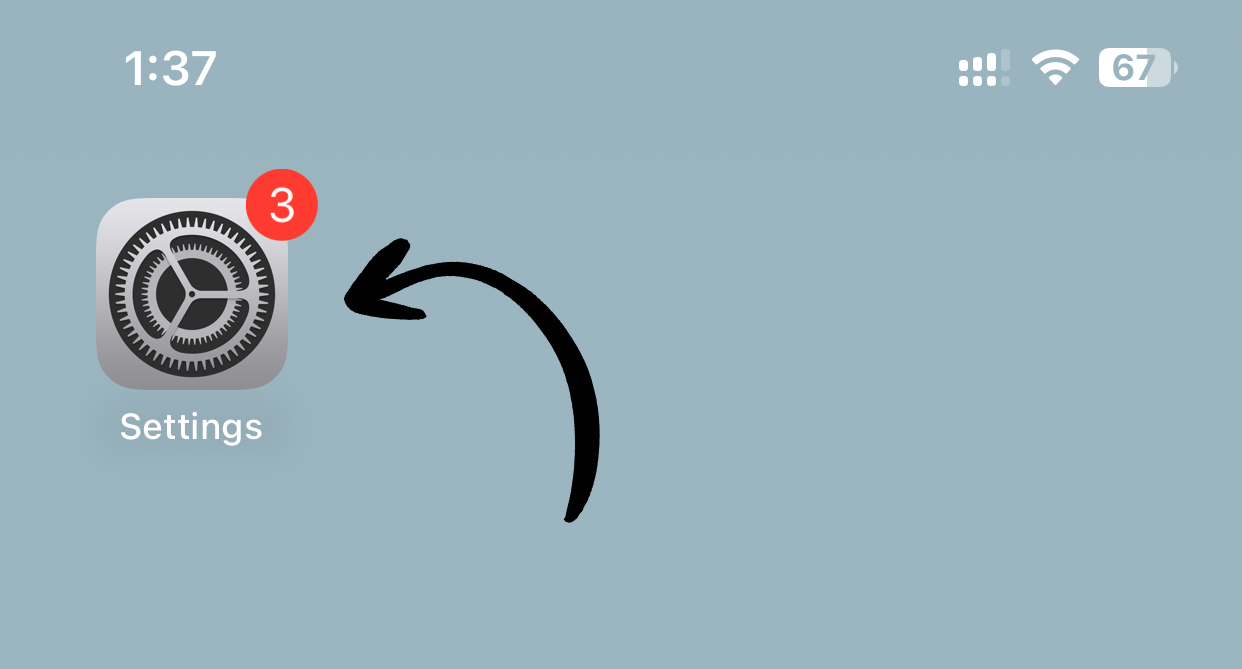
1. Open Settings
Tap Settings on your home screen.
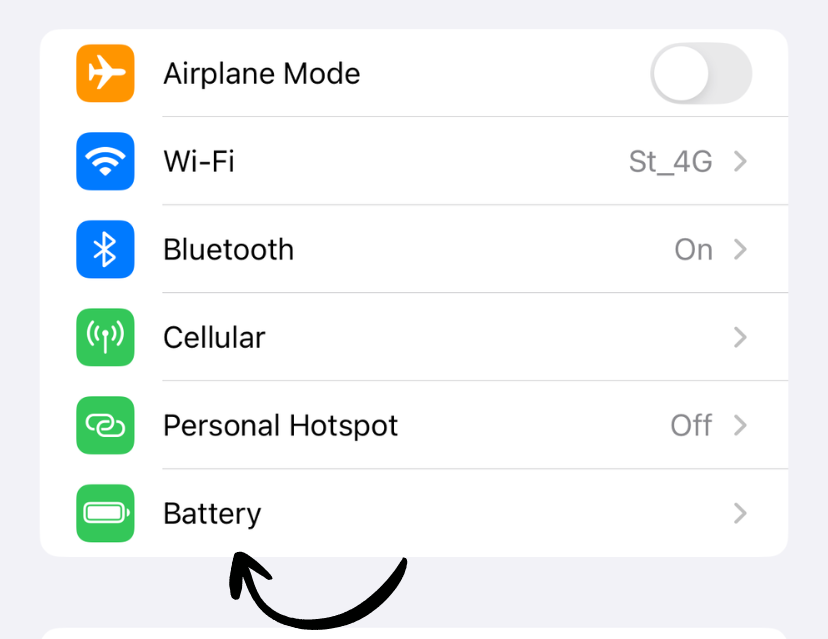
2. Go to Battery
Tap Battery.
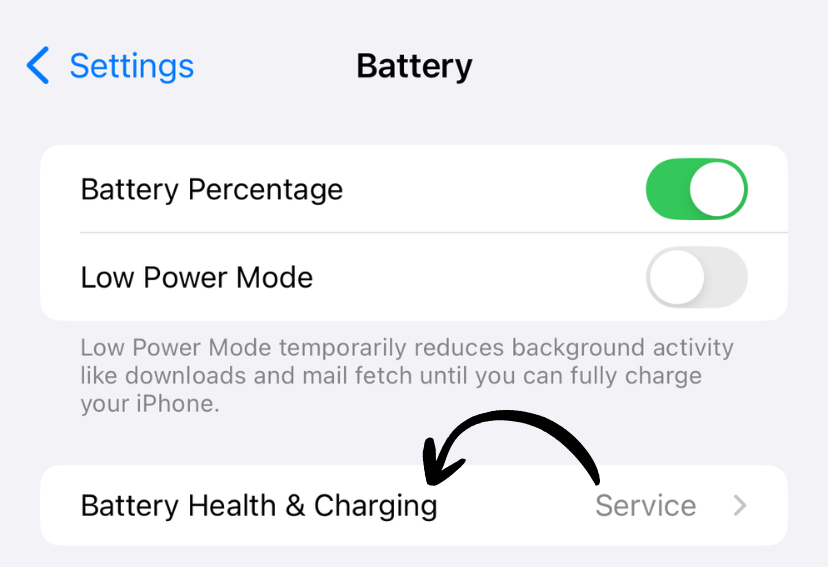
3. Tap Battery Health & Charging
Tap Battery Health & Charging (or Battery Health on older iOS versions).
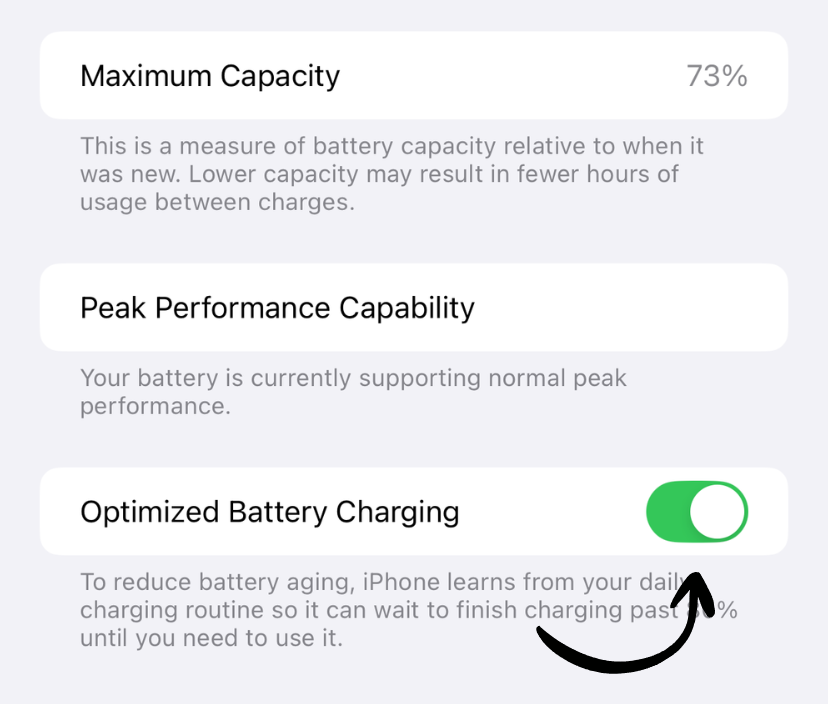
4. Enable Optimized Battery Charging
Toggle on Optimized Battery Charging.
✅ Done! Your iPhone will now learn your charging patterns.
How Long Does It Take to Learn?
iOS needs about 2 weeks of regular charging to learn your pattern. During this time:
- Keep a consistent daily routine
- Charge in the same location (iOS uses location data)
- Charge overnight regularly
When Does It Activate?
Optimized charging only activates when:
- iOS recognizes you’re at a familiar location (home, work)
- You’re following your regular charging schedule
- The device will be charging for an extended period
Temporary Override
If you need a full charge immediately:
iOS 15 and later:
- Long-press the battery notification
- Tap Charge Now
Alternative:
- Temporarily disable Optimized Battery Charging in Settings
Additional Battery Health Tips
For Maximum Battery Lifespan:
- Avoid extreme temperatures (below 32°F/0°C or above 95°F/35°C)
- Remove thick cases while charging
- Keep your device updated to latest iOS
- Avoid letting battery drop to 0% frequently
What’s the Difference vs Low Power Mode?
Optimized Battery Charging:
- Protects battery health long-term
- Learns your habits
- Works during charging
- Always leave it on
Low Power Mode:
- Saves battery power short-term
- Reduces performance temporarily
- Use when battery is low
- Turn on/off as needed
Works on iPhone and iPad
This feature is available on iPhone 8 and later, and iPad Pro (2018 and later) running iOS 13 or iPadOS 13 and later.
Related Guides
Clean Up Duplicate Photos Automatically
After optimizing your settings, use Dedupify to find and remove duplicate photos.
Download Dedupify